How to Edit or Remove a CNAME Record in cPanel
CNAME records (Canonical Name records) allow us to point one domain or subdomain to another domain name. If we’re changing third-party services, updating DNS settings, or cleaning up old records, cPanel’s Zone Editor makes it easy to edit or remove existing CNAME records.
In this guide, we’ll show you how to manage CNAME records in cPanel.
Why Edit or Delete a CNAME Record?
We may need to modify or remove a CNAME record when:
- Migrating to a new service provider.
- Updating CDN or cloud service settings.
- Changing the destination hostname.
- Removing obsolete subdomains.
- Correcting DNS configuration errors.
Making sure our CNAME records are up-to-date helps ensure websites and services function properly.
Step 1: Log in to cPanel
Access your hosting account and log in to your cPanel dashboard.
Step 2: Open the Zone Editor
In the Domains section, click on Zone Editor.

The Zone Editor allows us to manage all DNS records associated with our domains.
Step 3: Manage the Domain
Locate the domain containing the CNAME record you want to update.
Under the Actions column, click Manage.
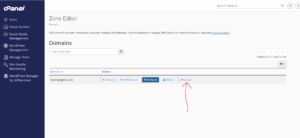
This will display all DNS records for the selected domain.
Step 4: Locate the CNAME Record
Scroll through the records or use the search feature to find the CNAME record you want to edit or remove.
To Edit a CNAME Record
- Click Edit next to the CNAME record.

- Modify the hostname or destination value as needed.
- Click Save Record to apply the changes.

Your updated CNAME record will be saved immediately.
To Remove a CNAME Record
- Find the CNAME record you want to delete.
- Click Delete.

- Confirm the deletion when prompted.
The record will be removed from your DNS zone.
DNS Propagation Time
Although changes are applied instantly in cPanel, they may take some time to propagate worldwide.
In most cases, DNS updates become active within 12 to 24 hours, though some internet providers may update sooner.
Common Uses for CNAME Records
We commonly use CNAME records to:
- Point www.example.com to example.com
- Connect subdomains to external hosting services
- Configure CDN providers
- Set up email marketing platforms
- Verify domain ownership with third-party applications
Best Practices for Managing CNAME Records
To avoid DNS issues, we recommend:
- Verifying the destination hostname before saving changes.
- Keeping a record of your current DNS settings before making modifications.
- Avoiding duplicate CNAME records for the same hostname.
- Allowing enough time for DNS propagation after updating records.
Tip: Before deleting a CNAME record, make sure it’s no longer required by your website or third-party services. Removing an active CNAME record may interrupt website functionality or external integrations.