How to Set Up Webmail for Your Domain
If you want your business to look more professional online, one of the best steps you can take is creating a domain-based email address — something like:
📧 info@yourdomain.com
📧 support@yourbusiness.com
It instantly boosts your brand credibility, helps your emails avoid the spam folder, and gives your business a more trustworthy identity.
In this guide, you’ll learn step-by-step how to set up Webmail for your domain, access it from any browser, and start sending emails immediately.
This tutorial works with any hosting provider that uses cPanel, the most widely used hosting control panel worldwide.
What Is Webmail?
Webmail is an online platform that lets you send and receive emails directly from your browser — similar to Gmail, but using your own domain.
Most hosting platforms offer:
-
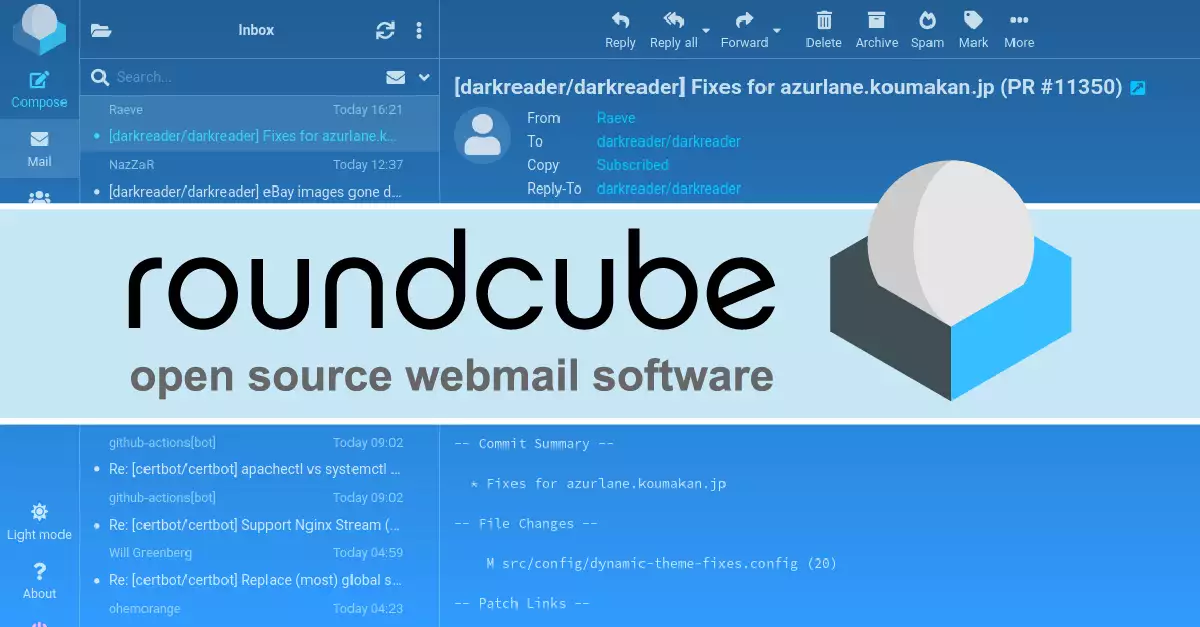
Roundcube (recommended)
-
Horde
-
SquirrelMail
With Webmail, you can access your business email anywhere without installing software.
How to Set Up Webmail for Your Domain (Step-by-Step Guide)
These steps apply to all hosting providers that offer cPanel access.
Step 1: Log In to Your Hosting Account
Go to your hosting provider’s website and log in to your client dashboard.
From there, you will find a button labelled:
“Login to cPanel”
Click it, and your hosting account will open.
Step 2: Open the Email Accounts Section
Inside cPanel:
-
Scroll down to the Email section
-
Click Email Accounts
This is where you create and manage all email addresses linked to your domain.
Step 3: Create Your Domain Email Address
-
Click the Create button
-
Enter your preferred email username (e.g. info, contact, hello)
-
Choose a strong password
-
Set mailbox storage (1GB or Unlimited recommended)
-
Click Create
You now have a fully functional business email!
Step 4: Log In to Webmail
There are two ways to log in:
Method 1: Using the Webmail URL
In your browser, type: yourdomain.com/webmail
Enter your email address and password, then log in.
Method 2: Through cPanel
-
Go back to Email Accounts
-
Click Check Email next to your email address
-
Select Roundcube
Step 5: Choose Your Webmail Application
You may see options like:
-
Roundcube (best choice — clean interface and easy to use)
-
Horde
-
SquirrelMail
Click Roundcube to begin emailing instantly.
How to Use Your Webmail
Inside Webmail, you can:
-
Send and receive emails
-
Create folders
-
Set up signatures
-
Attach files
-
Search your inbox
-
Organize messages
-
Add contacts
Everything works similarly to Gmail — but with your domain name.
How to Access Webmail from Anywhere
Just bookmark this URL: https://yourdomain.com/webmail
You can log in from any phone, computer, or tablet.
How to Connect Your Domain Email to Gmail or Outlook (Optional)
If you prefer reading your emails inside Gmail or Outlook, you can connect your domain using:
-
IMAP (recommended)
-
SMTP
-
POP3
Most hosting providers use these settings:
If you want, I can create a full tutorial for connecting to Gmail or Outlook.
Common Webmail Problems and Fixes
Your Webmail is not opening
Your domain may not be fully propagated. Wait a few hours.
Emails go to spam
Set up SPF, DKIM, and DMARC in your DNS settings.
Password not working
Reset it in cPanel → Email Accounts → Manage.
Inbox full
Increase mailbox storage or delete old emails.
Why Your Business Needs a Domain Email
Makes your brand look professional
Increases trust with customers
Helps emails avoid spam
Matches your website and branding
Easy to create team emails like support@ or sales@
Works on all devices
A domain email is one of the simplest branding upgrades you can make.
Final Thoughts
Setting up Webmail for your domain is simple, fast, and essential for building a strong online identity. With just a few steps in cPanel, you can create professional email accounts, log in from anywhere, and start communicating with customers instantly.