How to Install WordPress on cPanel in Under 5 Minutes
If you’re trying to install WordPress quickly using cPanel, the entire process takes less than five minutes. Whether you’re launching a business website, blog, portfolio, or online store, this step-by-step guide will help you install WordPress easily without any technical knowledge.
How to install WordPress on cPanel
Step 1: Log in to Your cPanel Account
After buying your hosting plan from Hosting Nigeria, you will receive an email containing your:
-
cPanel login link
-
Username
-
Password
Click the link, enter your details, and log in. Once inside, you’ll see the full cPanel dashboard.
Step 2: Scroll Down to the Software Section
Inside cPanel, look for the Software or Scripts section. Depending on your hosting provider, it may appear as:
-
Softaculous Apps Installer
-
WordPress Manager by Softaculous
-
Scripts Installer
If you see “WordPress” as a standalone icon, you can click that as well.
Step 3: Click on WordPress
Once you open Softaculous or WordPress Manager:
-
Click the WordPress logo
-
A new page will show you the Install button
-
Click Install Now
This will take you to the setup screen, where you configure your website before installation.
Step 4: Select Your Domain
If you have multiple domains or subdomains, you can choose the one where WordPress should be installed.
Under “Choose Installation URL”:
-
Select https:// (recommended if you have SSL activated)
-
Choose your domain name
-
Leave the “Directory” field empty unless you want to install WordPress in a folder
For example:
Leave it empty = installs on yourdomain.com
Type “blog” = installs on yourdomain.com/blog
Step 5: Fill in Your Site Details
You’ll be asked to enter basic information:
-
Site Name
-
Site Description
-
Admin Username
-
Admin Password
-
Admin Email
Use a strong password and an email address you can access.
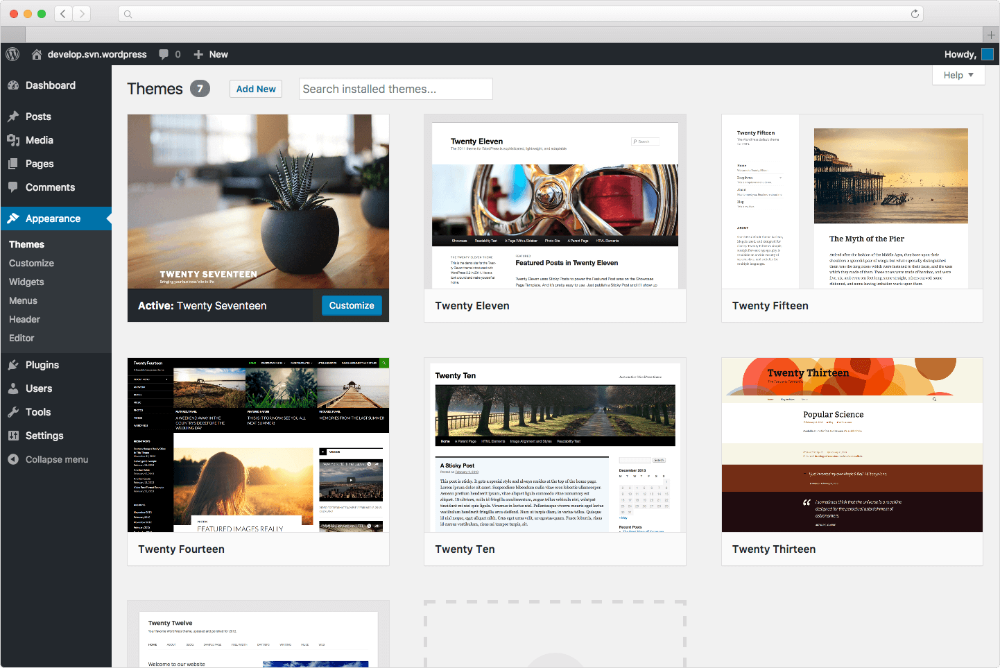
Step 6: Choose a Theme (Optional)
Softaculous usually gives you a list of themes to choose from.
You can skip this step because you can change or install a theme later directly from your WordPress dashboard.
Step 7: Click Install
Once everything is set:
-
Click the Install button
-
Wait for 10–20 seconds
-
Softaculous will automatically create the database and install WordPress
When the installation finishes, you’ll see two important links:
-
Your Website URL
-
Your WordPress Admin URL (yourdomain.com/wp-admin)
Click the admin link to log in.
Step 8: Log In to Your WordPress Dashboard
Enter the username and password you created earlier.
After logging in, you’ll see the WordPress dashboard where you can:
-
Install themes
-
Add plugins
-
Create pages
-
Publish blog posts
-
Customize your website
At this point, your WordPress website is fully installed and ready to build.
Why WordPress Installation on cPanel Takes Less Than 5 Minutes
Because cPanel includes Softaculous, all the heavy lifting is done automatically:
-
Database creation
-
File setup
-
WordPress configuration
-
Folder assignments
This makes it the fastest way to set up WordPress, especially for beginners who want to launch a website with no coding skills.
Tips Before and After Installing WordPress
Here are helpful recommendations, especially for users in Nigeria:
-
Make sure your hosting plan includes SSL so you can use https
-
Delete unused themes and plugins to improve speed
-
Install security plugins immediately
-
Enable automatic backups
-
Use a lightweight theme for better performance
-
Change your permalink structure to Post Name for better SEO
-
Keep your WordPress login details safe
Final Thoughts
Installing WordPress on cPanel is simple, fast, and beginner-friendly. With the steps above, you can set up your website in under five minutes and start designing immediately. Whether your site is for business, blogging, or eCommerce, this method works perfectly for anyone hosting a website in Nigeria.