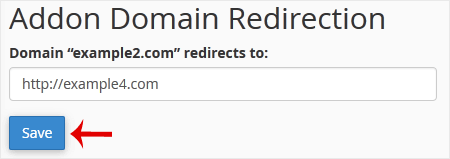
How to Redirect an Addon Domain in cPanel
Redirecting an addon domain in cPanel allows you to send visitors from one domain to another automatically. This is useful when moving to a new website, consolidating domains, or forwarding traffic to a specific page.
Follow the steps below to create a domain redirect in cPanel.
Step 1: Log in to cPanel
Access your hosting account and log in to your cPanel dashboard.
Step 2: Open the Redirects Tool
In the Domains section, click on Redirects.
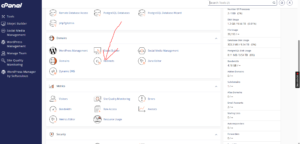
Step 3: Configure the Redirect Settings
Under the Add Redirect section, enter the required details and choose the appropriate redirect options:
- Type:
Select either:- Permanent (301): Recommended for SEO when the redirect is intended to stay permanently.
- Temporary (302): Best for short-term redirects or maintenance purposes.
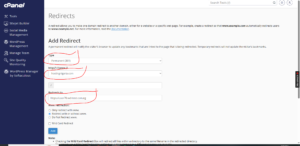
- https?://(www.)?:
Choose the addon domain you want to redirect from.
You can also specify a particular page if needed. - Redirects to:
Enter the destination URL where visitors should be redirected.
Make sure the destination URL is correct before proceeding.
Step 4: Add the Redirect
Click on the Add button to save and activate the redirect.
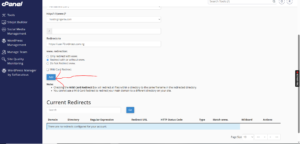
Redirect Successfully Created
Once completed, cPanel will display a confirmation message showing that the redirect has been created successfully.
Tip: A 301 redirect is generally better for preserving search engine rankings and passing SEO value from the old domain to the new one.