How to Remove a Subdomain in cPanel
A subdomain is an extension of your main domain that can be used for separate sections of your website, such as a blog, store, or client portal. If you no longer need a subdomain, you can easily remove it from your cPanel account.
Follow the steps below to delete a subdomain in cPanel.
Step 1: Log in to cPanel
Access your hosting account and log in to your cPanel dashboard.
Step 2: Open the Domains Section
In the cPanel dashboard, locate the Domains section and click on Domains.
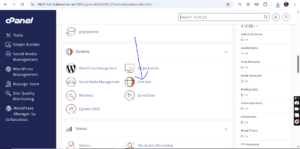
Step 3: Locate the Subdomain
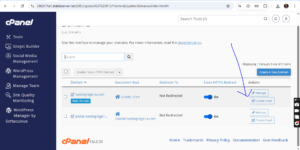
Find the subdomain you want to remove from the list of domains associated with your hosting account.
Next to the selected subdomain, click on Manage.
Step 4: Remove the Subdomain
Scroll down to the bottom of the page and click on Remove Domain.
A confirmation prompt may appear asking you to confirm the removal. Proceed to confirm the action.
Step 5: Confirmation Message
Once the removal process is complete, cPanel will display a success message confirming that the subdomain has been deleted successfully.
Important: Removing a subdomain does not always delete the files associated with it. Check your File Manager if you also want to remove the subdomain’s website files permanently.