How to Generate a cPanel Backup and Send It to a Remote FTP Server
Regular website backups are essential for protecting your files, databases, emails, and account settings. cPanel allows you to create a full account backup and automatically store it on a remote FTP server for added security and off-site storage.
Follow the steps below to generate a full cPanel backup and send it directly to an FTP server.
Step 1: Log in to cPanel
Access your hosting account and sign in to your cPanel dashboard.
Step 2: Open the Backup Tool
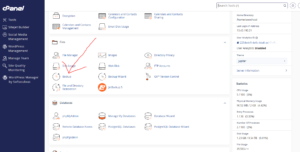
In the Files section, click on Backup.
Step 3: Start a Full Backup
Under the Full Backup section, click Download a Full Website Backup.

Step 4: Configure the Backup Settings
Under the Generate a Full Backup page, enter the required information.
Backup Destination
From the Backup Destination dropdown menu, select:
Remote FTP Server
Email Address
Enter your email address to receive a notification when the backup process is completed.
Remote Server
Enter the FTP server hostname or IP address.
Examples:
ftp.example.com192.168.1.100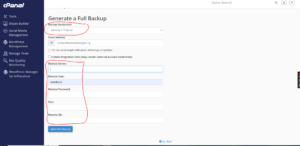
Remote User
Enter the FTP username used to access the remote server.
Remote Password
Enter the FTP account password associated with the username.
Port
Enter the FTP port number.
The default FTP port is:
21
Use a different port only if your FTP server requires it.
Remote Directory
Specify the folder where the backup file should be stored on the remote server.
Example:
/home/username/backupfolder/
Ensure that the directory exists and has the correct permissions.
Step 5: Generate the Backup
After filling in all FTP details, click Generate Backup.
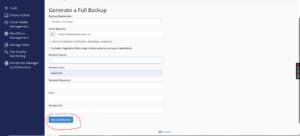
cPanel will begin creating the backup and automatically transfer it to the specified FTP server once the backup is complete.
Backup Completion
When the backup process finishes, you will receive an email notification confirming the successful creation and transfer of your backup.
Benefits of Remote FTP Backups
Using a remote FTP server for backups provides several advantages:
- Protects backups from server failures.
- Stores copies of your website off-site.
- Simplifies disaster recovery.
- Reduces the risk of data loss.
- Makes website migration easier.
Best Practices for Backup Management
To maximize backup security:
- Schedule regular backups.
- Verify that backups are transferred successfully.
- Test backup files periodically.
- Store backups in multiple locations.
- Secure FTP credentials with strong passwords.
Tip: Keeping backups on a separate server ensures you still have access to your website data even if your hosting account becomes unavailable.