
How to Update a Cron Job Email Address in cPanel
Cron jobs can automatically send notifications whenever a scheduled task runs or encounters an error. Keeping the correct email address configured ensures we receive important updates about our automated processes and can quickly identify any issues that may arise.
In this guide, we’ll show you how to update the email address used for cron job notifications in cPanel.
Why Cron Job Email Notifications Matter
Cron job emails can help us:
- Monitor scheduled tasks and scripts
- Identify errors quickly
- Confirm that automated processes are running correctly
- Troubleshoot failed cron jobs
- Stay informed about important server activities
If the configured email address is outdated or incorrect, we may miss critical notifications.
Step 1: Log in to cPanel
Access your hosting account and log in to your cPanel dashboard.
Step 2: Open the Cron Jobs Tool
In the Advanced section, click on Cron Jobs.

This will open the cron job management page.
Step 3: Update the Cron Job Email Address
Locate the Cron Email section near the top of the page.
In the email address field, enter the full email address where you would like to receive cron job notifications.
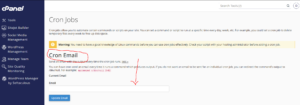
Example:
admin@example.com
Make sure the email address is active and accessible.
Step 4: Save Your Changes
Click Update Email to save the new email address.
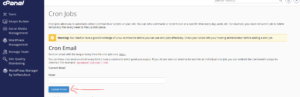
Email Address Successfully Updated
Once saved, cPanel will use the new email address for future cron job notifications and status messages.
Best Practices for Cron Job Notifications
To ensure you never miss important alerts, we recommend:
- Using an email address you check regularly.
- Keeping the email address up to date.
- Reviewing cron job notifications periodically.
- Disabling unnecessary cron job output to reduce email clutter.
What Happens If No Email Address Is Set?
If a cron job generates output and no email address is configured, important notifications may not reach you. Setting a valid email address helps us stay informed about the health and performance of our automated tasks.
Tip: If you’re receiving too many cron job emails, consider modifying your cron commands to suppress unnecessary output while still keeping important notifications enabled.