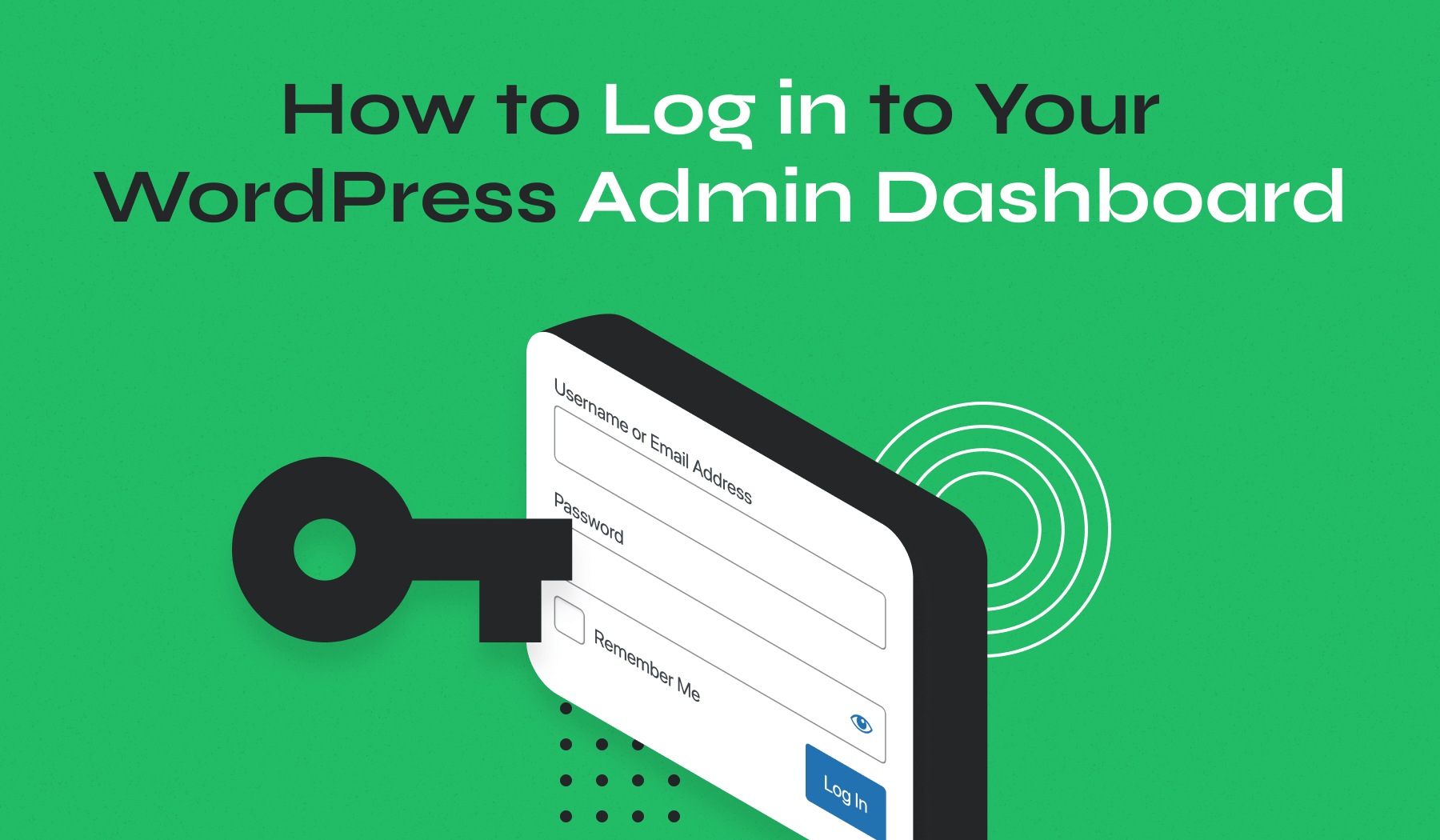
How to Access the WordPress Admin Dashboard
WordPress is one of the most popular and user-friendly content management systems (CMS) available today. Once WordPress is installed, we can manage our website, publish blog posts, customize themes, install plugins, and control every aspect of our site through the WordPress Admin Dashboard.
In this guide, we’ll show you how to log in to your WordPress dashboard.
What Is the WordPress Admin Dashboard?
The WordPress Admin Dashboard is the control panel of your website. From there, you can:
- Create and edit pages and posts.
- Install and manage plugins.
- Customize themes and website appearance.
- Manage users and permissions.
- Configure WordPress settings.
- Upload images and media files.
Access to the dashboard requires our WordPress username and password.
Step 1: Open the WordPress Login Page
In your web browser, enter:
https://example.com/wp-admin
Replace example.com with your actual domain name.
For example:
https://yourdomain.com/wp-admin
You can also access the login page through:
https://yourdomain.com/wp-login.php
Both URLs will take you to the WordPress login screen.
Step 2: Enter Your Login Details
On the WordPress login page, enter:
- Your WordPress username or email address.
- Your WordPress password.
After entering your credentials, click Log In.
Step 3: Access the WordPress Dashboard
If your login details are correct, you’ll be redirected to the WordPress Admin Dashboard.
From here, you can manage every aspect of your website.
What Can You Do From the Dashboard?
The WordPress dashboard allows you to:
- Publish blog posts.
- Create pages.
- Manage comments.
- Install themes and plugins.
- Upload images and videos.
- Monitor website performance.
- Update WordPress core files.
Troubleshooting Login Problems
If you’re unable to log in, try the following:
- Verify that your username and password are correct.
- Use the Lost your password? link to reset your password.
- Ensure the website URL is entered correctly.
- Clear your browser cache and cookies.
- Disable browser extensions that may interfere with login.
Best Practices for WordPress Security
To protect your website, we recommend:
- Using a strong password.
- Enabling two-factor authentication (2FA).
- Keeping WordPress, plugins, and themes updated.
- Creating regular backups.
- Avoiding the use of “admin” as a username.
Tip: Bookmark your WordPress login URL (
yourdomain.com/wp-admin) for quick access to your website dashboard whenever you need to make changes or publish new content.