How to Install a WordPress Plugin
WordPress plugins make it easy to add new features and functionality to your website without writing any code. Whether you want to improve security, boost SEO, add contact forms, or create an online store, plugins allow you to customize your site to meet your needs.
In this guide, you’ll learn how to install and activate a WordPress plugin directly from your dashboard.
What Are WordPress Plugins?
Plugins are add-ons that extend the capabilities of WordPress. They allow you to add features such as:
- Website security
- Search engine optimization (SEO)
- Contact forms
- Website backups
- Speed and caching optimization
- E-commerce functionality
- Social media integration
- Analytics and visitor tracking
With thousands of free and premium plugins available, you can customize your website for almost any purpose.
Step 1: Log in to the WordPress Dashboard
Sign in to your WordPress Admin Dashboard using your username and password.
Once logged in, you’ll have access to all plugin management features.
Step 2: Open the Plugin Directory
From the left-hand menu, go to:
Plugins → Add New Plugin
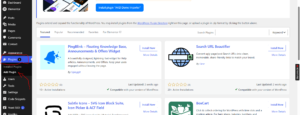
This will open the WordPress Plugin Directory, where you can browse and install plugins.
Step 3: Search for a Plugin
Use the search box to find the plugin you want to install.
For example, if you’re looking for security plugins, simply search for:
Security
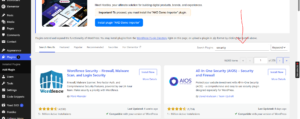
WordPress will display plugins related to your search term. If you already know the plugin’s name, you can search for it directly.
Step 4: Install the Plugin
Locate the plugin you want and click Install Now.
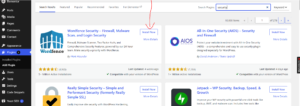
WordPress will automatically download and install the plugin on your website. This process usually takes only a few seconds.
Step 5: Activate the Plugin
After the installation is complete, the Install Now button will change to Activate.
Click Activate to enable the plugin.
Congratulations! You’ve successfully installed and activated your WordPress plugin.
How to Access Plugin Settings
Many plugins add their own menu item to the WordPress dashboard after activation.
Some plugins also include a setup wizard that guides you through the initial configuration. Simply follow the on-screen instructions to complete the setup.
Popular Types of WordPress Plugins
Here are some common categories of plugins you may want to install:
- Security plugins
- SEO plugins
- Backup plugins
- Caching and performance plugins
- Contact form plugins
- Page builders
- E-commerce plugins
- Analytics plugins
Best Practices for Installing Plugins
To keep your website secure and running smoothly, it’s a good idea to:
- Install plugins only from trusted sources.
- Keep your plugins updated.
- Remove plugins you no longer use.
- Avoid installing too many plugins.
- Check reviews and compatibility before installation.
- Create regular backups of your website.
Common Plugin Installation Problems
Plugin Won’t Install
This can happen if:
- Your hosting account has run out of disk space.
- PHP memory limits are too low.
- The plugin isn’t compatible with your WordPress version.
Plugin Causes Errors
If a plugin causes issues on your website:
- Deactivate the plugin.
- Clear your website cache.
- Update WordPress and the plugin.
- Contact the plugin developer if necessary.
Conclusion
Plugins are one of the reasons WordPress is so powerful and flexible. By installing the right plugins, you can enhance your website’s functionality and create a better experience for your visitors.
Tip: Avoid installing plugins you don’t truly need. Too many plugins can slow down your website and increase security risks.