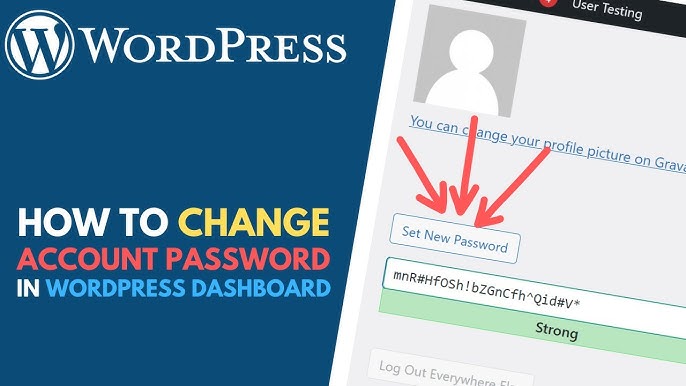
How to Change the Password of a WordPress Account
Keeping your WordPress password secure is essential for protecting your website from unauthorized access. Whether you want to improve security, update an old password, or simply create a stronger one, WordPress allows you to change your password quickly from the dashboard.
In this guide, you’ll learn how to change your WordPress account password in just a few steps.
Why Change Your WordPress Password?
Regularly updating your password can help:
- Improve website security.
- Protect your account from unauthorized access.
- Reduce the risk of hacking attempts.
- Replace weak or outdated passwords.
- Secure your website after sharing login credentials.
It’s recommended to use a strong, unique password that combines uppercase and lowercase letters, numbers, and special characters.
Step 1: Log in to the WordPress Dashboard
Access your WordPress Admin Dashboard using your current username and password.
Once logged in, you’ll be able to manage your account settings.
Step 2: Open Your Profile Settings
From the left-hand menu, navigate to:
Users → Profile
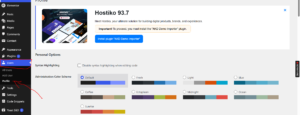
This page contains your personal account settings, including password management options.
Step 3: Generate a New Password
Scroll down to the Account Management section.
Click Set New Password.
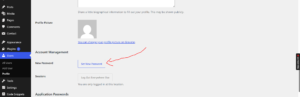
WordPress will automatically generate a strong password for you. You can either use the suggested password or replace it with your own custom password.
Tip: Choose a strong password that is difficult to guess and avoid using common words or personal information.
Step 4: Save Your New Password
Before saving, copy your new password and store it in a secure location, such as a password manager.
Once you’re ready, click Update Profile.
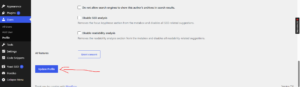
Your password will be changed immediately.
Congratulations! You’ve successfully updated your WordPress account password.
What If You Forget Your Password?
If you’re unable to log in to WordPress, you can reset your password from the login page:
- Visit your WordPress login page.
- Click Lost your password?
- Enter your username or email address.
- Follow the password reset instructions sent to your email.
This allows you to regain access without logging into the dashboard.
Best Practices for WordPress Password Security
To keep your account secure, it’s a good idea to:
- Use a unique password for WordPress.
- Enable two-factor authentication (2FA) if available.
- Avoid sharing login credentials.
- Change passwords periodically.
- Store passwords in a trusted password manager.
- Remove unused user accounts from your website.
Common Password Issues
Unable to Save the New Password
This may happen if:
- Your browser session has expired.
- A security plugin is blocking changes.
- You don’t have sufficient user permissions.
Try logging out and back in before attempting the update again.
Forgot Your Password and Email Access
If you can’t access both your password and recovery email, you may need to reset the password through your hosting control panel or database.
Conclusion
Changing your WordPress password is one of the simplest ways to improve your website’s security. By using a strong password and updating it regularly, you can better protect your account and website from unauthorized access.
Tip: Consider using a password manager to generate and securely store strong passwords for all your website accounts.