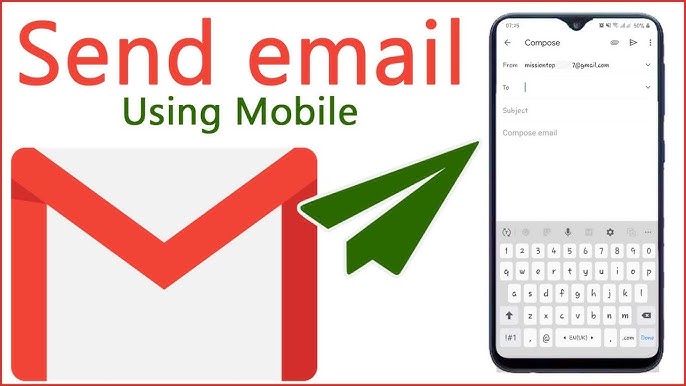
How to Send an Email on Android
Once you’ve set up your cPanel email account on your Android device, you can easily send emails using the Gmail app or your preferred email application. Whether you’re replying to a client, contacting a customer, or sending important updates, Android makes composing and sending emails quick and convenient.
In this guide, you’ll learn how to send an email from your Android device.
Before You Begin
Make sure:
- Your cPanel email account is already configured on your Android device.
- Your device is connected to the internet.
- Your email account is syncing properly.
Tip: If you’ve set up multiple email accounts, double-check that you’re sending from the correct email address before composing your message.
Step 1: Open Your Email App
Launch the Gmail app or the email application where your cPanel email account is configured.
Wait for your inbox to load completely.
Step 2: Create a New Email
Tap the Compose button, usually represented by a pencil icon or a + button.
A new email message window will open.
Step 3: Enter the Recipient’s Email Address
In the To field, enter the email address of the person you want to contact.
If you’re sending the email to multiple recipients, you can add additional email addresses separated by commas or use the Cc and Bcc fields when available.
Step 4: Add a Subject Line
Enter a brief and descriptive subject in the Subject field.
A clear subject line helps recipients understand the purpose of your email before opening it.
Step 5: Write Your Message
Tap inside the message area and type your email.
You can include:
- Text messages
- Website updates
- Customer inquiries
- Business communications
- Personal messages
Take a moment to review your message before sending it.
Step 6: Send the Email
Once your message is ready, tap the Send button.
Your email will be delivered to the recipient’s inbox.
Congratulations! You’ve successfully sent an email from your Android device.
Adding Attachments (Optional)
Most Android email apps allow you to attach files to your email.
You can typically attach:
- Images
- Documents
- PDFs
- Videos
- Other supported file types
Look for the paperclip icon while composing your message to add attachments.
Common Sending Issues
Email Won’t Send
If your message remains in the Outbox:
- Check your internet connection.
- Verify your SMTP settings.
- Ensure your email account password is correct.
- Refresh your email application.
Incorrect Sender Address
If the wrong email address appears as the sender:
- Review your account settings.
- Select the correct email account before composing the message.
Attachment Won’t Upload
If an attachment fails:
- Confirm the file size isn’t too large.
- Check your internet connection.
- Try attaching the file again.
Tips for Professional Emails
To make your emails more effective:
- Use a clear subject line.
- Keep your message concise.
- Proofread before sending.
- Include a professional signature.
- Verify recipient addresses carefully.
Conclusion
Sending emails from Android is simple once your cPanel email account is configured. Whether you’re managing business communications or personal messages, you can quickly compose, send, and manage emails directly from your mobile device.
Tip: Enable email synchronization and notifications to stay connected and respond to important messages promptly.