How to Access Web Disk in cPanel
Web Disk allows us to access and manage our website files directly from our computer, just like working with a local drive. It provides a convenient way to upload, download, edit, and organize files without relying on FTP clients.
Web Disk supports multiple operating systems, including Windows, macOS, Linux, and even some mobile platforms.
Follow the steps below to access Web Disk using cPanel.
Why Use Web Disk?
Using Web Disk enables us to:
- Access website files as if they were stored locally.
- Upload and download files quickly.
- Manage files without an FTP application.
- Synchronize files between our computer and hosting account.
- Work more efficiently on large projects.
Step 1: Log in to cPanel
Access your hosting account and log in to your cPanel dashboard.
Step 2: Open Web Disk
In the Files section, click on Web Disk.

This will take us to the Web Disk management page.
Step 3: Configure Client Access
Under the Main Web Disk Account section, click Configure Client Access.
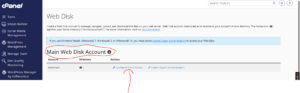
This allows us to download the configuration settings required for our operating system.
Step 4: Download the Configuration Script
From the operating system dropdown menu, select the system you’re using, such as:
- Windows
- macOS
- Linux
Once selected, click Download Configuration Script.

The script contains the settings needed to connect to your Web Disk account automatically.
Step 5: Run the Configuration Script
Open the downloaded configuration script.
Depending on your operating system, it may take a few moments before a login window appears.
When prompted, enter your:
- Web Disk username and password, or
- cPanel login credentials
After successful authentication, you’ll be able to access your website files directly from your computer.
Important Note for Windows Users
If your server does not use SSL, we recommend enabling Digest Authentication for compatibility.
Also, ensure that port 2078 is allowed through your computer’s firewall, otherwise the connection may fail.
Best Practices for Using Web Disk
To keep your files secure and your workflow efficient, we recommend:
- Using SSL whenever possible.
- Protecting your account with strong passwords.
- Creating additional Web Disk accounts for team members instead of sharing your cPanel credentials.
- Restricting access to specific directories when necessary.
- Removing unused Web Disk accounts.
Common Uses for Web Disk
We often use Web Disk to:
- Manage website files remotely.
- Collaborate with developers and team members.
- Upload large numbers of files.
- Synchronize project folders with our hosting account.
- Access website files without an FTP client.
Tip: If you’re unable to connect to Web Disk, check that your firewall allows port 2078 and verify that your login credentials are correct. Using an SSL-enabled connection can also improve compatibility and security.