How to Edit the .htaccess File in cPanel File Manager
The .htaccess file is one of the most important configuration files for websites hosted on Apache servers. It allows us to control website behavior, create redirects, improve security, manage URL structures, force HTTPS connections, and much more.
Because changes to the .htaccess file can directly affect how our website functions, it’s always a good idea to create a backup before making any modifications.
Follow the steps below to edit your .htaccess file using cPanel File Manager.
Step 1: Log in to cPanel
Access your hosting account and log in to your cPanel dashboard.
Step 2: Open File Manager
In the Files section, click on File Manager.
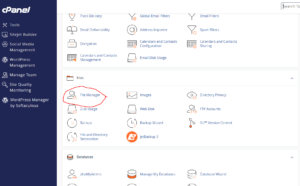
This will open the file management interface where we can access all files and folders within our hosting account.
Step 3: Navigate to the Correct Directory
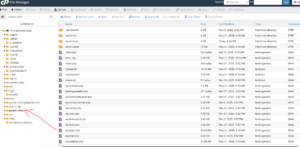
Locate the directory that contains the .htaccess file you want to edit.
For most websites, the main .htaccess file is located inside the public_html directory.
Step 4: Display Hidden Files (If Necessary)
The .htaccess file is a hidden file, which means it may not be visible by default.
If you can’t see it:
- Click Settings in the upper-right corner of File Manager.
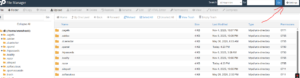
- Check the option Show Hidden Files (Dotfiles).
- Click Save.
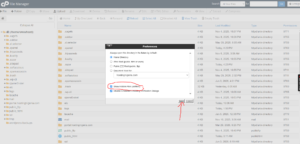
The .htaccess file should now appear in the directory listing.
If no .htaccess file exists, we can create one manually.
Step 5: Open the .htaccess Editor
Right-click on the .htaccess file.
From the menu that appears, select Edit.
Step 6: Launch the Editor
A confirmation window may appear.
Click Edit again to open the file editor.
Step 7: Make Your Changes
The file will open inside the cPanel editor.
Here, we can add, remove, or modify rules such as:
- URL redirects
- HTTPS enforcement
- Custom error pages
- IP restrictions
- Rewrite rules
- Security configurations
Be careful when editing the file, as incorrect syntax can cause website errors.
Step 8: Save Your Changes
After making the necessary updates, click Save Changes.
The new settings will take effect immediately.
Common Uses for the .htaccess File
Many website owners use the .htaccess file to:
- Redirect HTTP traffic to HTTPS
- Redirect old URLs to new pages
- Protect sensitive directories
- Improve website security
- Create SEO-friendly URLs
- Block unwanted traffic
Important Tips Before Editing .htaccess
To avoid website issues, we recommend:
- Creating a backup before editing.
- Testing changes immediately after saving.
- Editing one rule at a time when troubleshooting.
- Keeping a copy of the original file.
Tip: If your website stops working after editing the .htaccess file, restore the previous version or remove the most recent changes to quickly resolve the issue.