How to Add a New Category in WordPress
Categories help us organize our blog posts into different topics, making it easier for visitors to navigate our website and discover related content. WordPress allows us to create both categories and subcategories, and a single post can belong to multiple categories.
In this guide, we’ll show you how to create a new category in WordPress.
Why Use Categories in WordPress?
Categories help us:
- Organize our blog posts into topics.
- Improve website navigation.
- Enhance the user experience.
- Help search engines understand our content structure.
- Group related posts together.
For example, a technology blog might have categories like:
- Web Hosting
- WordPress
- SEO
- Programming
- Tutorials
Step 1: Log in to the WordPress Dashboard
Access your WordPress Admin Dashboard using your username and password.
Step 2: Open the Categories Page
From the left-hand menu, navigate to:
Posts → Categories
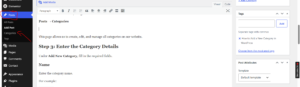
This page allows us to create, edit, and manage all categories on our website.
Step 3: Enter the Category Details
Under Add New Category, fill in the required fields.
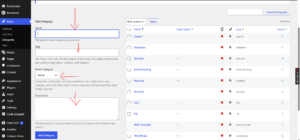
Name
Enter the category name.
For example:
Computer
Choose a name that clearly describes the type of content that will belong to the category.
Slug
The slug is the URL-friendly version of the category name.
For example:
computer
You can enter a custom slug or leave it blank and WordPress will generate one automatically.
Parent Category
By default, leave this option set to None.
However, if you select an existing category, the new category will become a subcategory.
For example:
Technology
└── Computer
This helps create a more organized content structure.
Description
You can add a brief description of the category or leave it blank.
Some WordPress themes display category descriptions on archive pages.
Step 4: Create the Category
Once you’ve entered the necessary information, click Add New Category.
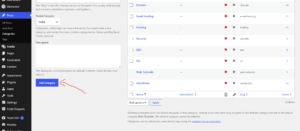
Your new category will immediately appear in the categories list and will be available when creating or editing posts.
How to Assign Posts to a Category
When creating or editing a post:
- Go to Posts → Add New or open an existing post.
- Locate the Categories section.
- Select one or more categories.
- Save or update the post.
A post can belong to multiple categories if necessary.
Best Practices for WordPress Categories
To keep our website organized, we recommend:
- Using broad topics for main categories.
- Creating subcategories only when needed.
- Avoiding too many categories.
- Using descriptive category names.
- Keeping a consistent content structure.
Categories vs Tags
While both help organize content, they serve different purposes:
| Categories | Tags |
|---|---|
| Broad topics | Specific keywords |
| Can have subcategories | Cannot have subcategories |
| Essential for site structure | Optional |
| Organize related posts | Describe individual posts |
Examples of Blog Categories
Some common category ideas include:
- Web Hosting
- WordPress Tutorials
- Blogging
- SEO
- Website Security
- Business Tips
- Digital Marketing
Tip: Keep your categories broad and meaningful. Too many categories can make your website difficult to navigate and may dilute your content structure.