How to Manually Install a WordPress Plugin
While installing plugins directly from the WordPress Plugin Directory is quick and easy, there are times when you’ll need to install a plugin manually. This is common when using premium plugins, custom plugins, or plugins downloaded from third-party sources.
In this guide, you’ll learn how to manually upload and install a WordPress plugin in just a few steps.
When Should You Install a Plugin Manually?
Manual plugin installation is useful when:
- You’re using a premium plugin purchased from a developer.
- The plugin isn’t available in the WordPress Plugin Directory.
- You have a custom plugin created for your website.
- You’ve downloaded a plugin from a third-party source.
Before you begin, make sure you have the plugin’s ZIP file saved on your computer.
Step 1: Log in to the WordPress Dashboard
Sign in to your WordPress Admin Dashboard using your username and password.
Once logged in, you’ll have access to the plugin management area.
Step 2: Navigate to the Plugins Page
From the left-hand menu, go to:
Plugins → Add New Plugin
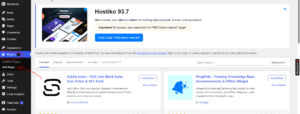
This will open the plugin installation page.
Step 3: Upload the Plugin
At the top of the page, click Upload Plugin.
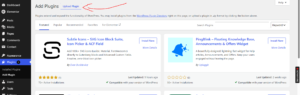
Next, click Choose File or Browse and select the plugin ZIP file from your computer.
Once you’ve selected the file, click Install Now.
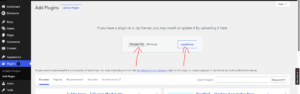
WordPress will upload and install the plugin automatically.
Important: Upload the plugin as a
.zipfile. Do not extract the ZIP archive before uploading it.
Step 4: Activate the Plugin
After the installation is complete, click Activate Plugin.
Congratulations! You’ve successfully installed and activated your WordPress plugin.
Accessing Plugin Settings
After activation, many plugins add a new menu item to your WordPress dashboard.
Some plugins may also launch a setup wizard to help you configure the plugin. Follow the on-screen instructions to complete the setup.
Common Problems During Manual Plugin Installation
“The Package Could Not Be Installed”
This usually happens when:
- You’ve uploaded the wrong ZIP file.
- The plugin files were extracted before uploading.
- The ZIP file contains documentation instead of the actual plugin.
Always upload the original plugin ZIP file provided by the developer.
Upload Size Limit Exceeded
Large plugins may exceed your server’s upload limit. If this happens, you can:
- Increase your PHP upload limit.
- Upload the plugin using cPanel File Manager or FTP.
Plugin Causes Errors
If your website experiences issues after activation:
- Deactivate the plugin.
- Clear your website cache.
- Check whether the plugin is compatible with your WordPress version.
- Contact the plugin developer for assistance.
Best Practices When Installing Plugins
To keep your website secure and performing well, it’s a good idea to:
- Download plugins only from trusted sources.
- Keep plugins updated.
- Remove plugins you no longer use.
- Create regular website backups.
- Avoid installing unnecessary plugins.
- Test major plugins on a staging website when possible.
Conclusion
Manual plugin installation gives you the flexibility to use premium and custom plugins that aren’t available in the WordPress Plugin Directory. With just a few clicks, you can upload, install, and activate new features for your website.
Tip: Before installing any plugin, make sure it’s compatible with your WordPress version and regularly updated by its developer. This helps keep your website secure and running smoothly.