
How to Add an A Record in cPanel
An A Record (Address Record) is a DNS record that points a domain or subdomain to an IPv4 address. We commonly use A records when connecting a domain to a web server, setting up a subdomain, or directing traffic to a specific IP address.
Using cPanel’s Zone Editor, we can quickly add or manage A records for our domains.
Follow the steps below to add an A record in cPanel.
What Is an A Record?
An A Record maps a hostname to an IP address.
For example:
example.com → 192.168.1.1blog.example.com → 192.168.1.1
A records are commonly used for:
- Pointing a domain to a web hosting server
- Creating subdomains
- Connecting websites to dedicated IP addresses
- Configuring custom services
Step 1: Log in to cPanel
Access your hosting account and log in to your cPanel dashboard.
Step 2: Open the Zone Editor
In the Domains section, click on Zone Editor.

The Zone Editor allows us to manage DNS records for all domains associated with our hosting account.
Step 3: Select the Domain
Under the Domains section, locate the domain you want to manage.
In the Actions column, click A Record.
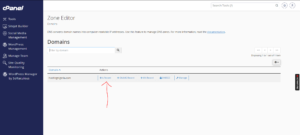
A popup window will appear.
Step 4: Enter the A Record Details
Fill in the required information:

Name
Enter the hostname or subdomain you want to point.
For example:
- Enter blog to create:
blog.example.com
If you want to point the root domain itself, leave the default value provided by cPanel.
Address
Enter the server’s IPv4 address.
Example:
192.168.1.1
Make sure you use the correct IP address supplied by your hosting provider or server administrator.
Step 5: Add the A Record
Click Add an A Record.
Your new DNS record will be created immediately.
DNS Propagation Time
Although the record is added instantly, DNS changes do not take effect worldwide immediately.
In most cases, propagation takes between 12 and 24 hours, although some networks may update much faster.
Common Uses of A Records
We typically use A records to:
- Point a domain to a hosting server
- Create subdomains such as
blog.example.com - Connect websites to VPS or dedicated servers
- Migrate websites to a new host
- Configure custom web services
Best Practices When Managing A Records
To avoid DNS issues, we recommend:
- Double-checking the IP address before saving.
- Removing outdated A records when migrating servers.
- Allowing up to 24 hours for DNS propagation.
- Avoiding duplicate records that point to different IP addresses.
Tip: If your website does not load immediately after adding an A record, don’t worry. DNS changes can take anywhere from a few minutes to 24 hours to propagate across the internet.