
How to Change an Email Account Password in cPanel
Keeping your email account secure is essential for protecting sensitive information and preventing unauthorized access. If you need to update your email password, cPanel provides a quick and straightforward way to do so.
Follow the steps below to change your email account password in cPanel.
Step 1: Log in to cPanel
Access your hosting account and log in to your cPanel dashboard.
Step 2: Open Email Accounts
In the Email section, click on Email Accounts.
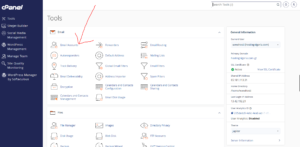
Step 3: Locate the Email Account
Under the Account @ Domain section, find the email account whose password you want to change.
For example, if your email address is server@example.com, locate it in the list of available email accounts.
Step 4: Open Email Account Management
Click the Manage button next to the email account.

Step 5: Create a New Password
In the New Password field, enter your preferred password.
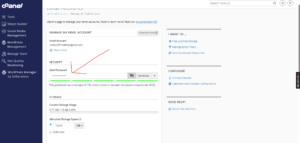
Alternatively, you can use the built-in Password Generator to create a strong and secure password automatically.
For maximum security, choose a password that:
- Contains uppercase and lowercase letters.
- Includes numbers and special characters.
- Is unique and not used on other accounts.
Step 6: Save the Changes
Scroll to the bottom of the page and click Update Email Settings.
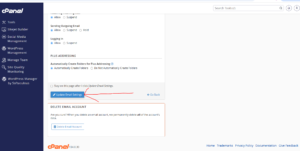
Password Successfully Changed
Once the update is complete, cPanel will display a confirmation message indicating that your email password has been changed successfully.
You can now log in to your email account using your new password.
Important Notes
- Update the password on all devices and email applications connected to the account.
- If you use email clients such as Outlook, Thunderbird, or mobile mail apps, you will need to enter the new password there as well.
- Store your password securely and avoid sharing it with unauthorized users.
Tip: Regularly updating your email password is a simple but effective way to improve account security and reduce the risk of unauthorized access.