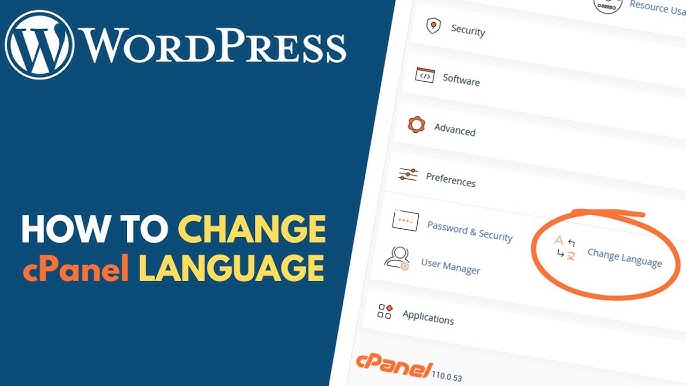
How to Change the Language of Your cPanel Account
cPanel supports multiple languages, making it easier for us to manage our hosting accounts in the language we’re most comfortable with. Whether we prefer English, French, Spanish, Arabic, or another supported language, cPanel allows us to switch languages in just a few clicks.
Changing the language only affects the cPanel interface and does not impact our websites, emails, databases, or hosting settings.
Step 1: Log in to cPanel
Access your hosting account and log in to your cPanel dashboard.
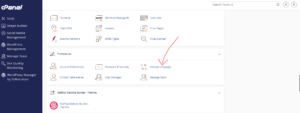
Step 2: Open the Language Settings
In the Preferences section, click on Change Language.
Step 3: Select Your Preferred Language
From the drop-down menu, choose the language you would like cPanel to display.
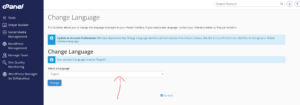
Browse through the available options and select the one that best suits your preference.
Step 4: Save the Changes
Click Change to apply the selected language.
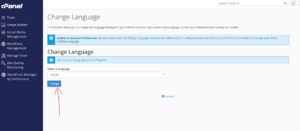
Language Successfully Updated
Once the change is applied, cPanel will automatically refresh and display the interface in your chosen language.
Why Change Your cPanel Language?
Using your preferred language can help us:
- Navigate cPanel more easily.
- Understand settings and features better.
- Reduce configuration mistakes.
- Improve the overall user experience.
Important Notes
- The language change only affects your cPanel account.
- Website content and emails remain unchanged.
- You can switch back to another language at any time.
Tip: If you’re new to web hosting, choosing a language you’re most familiar with can make managing your hosting account much easier and more efficient.