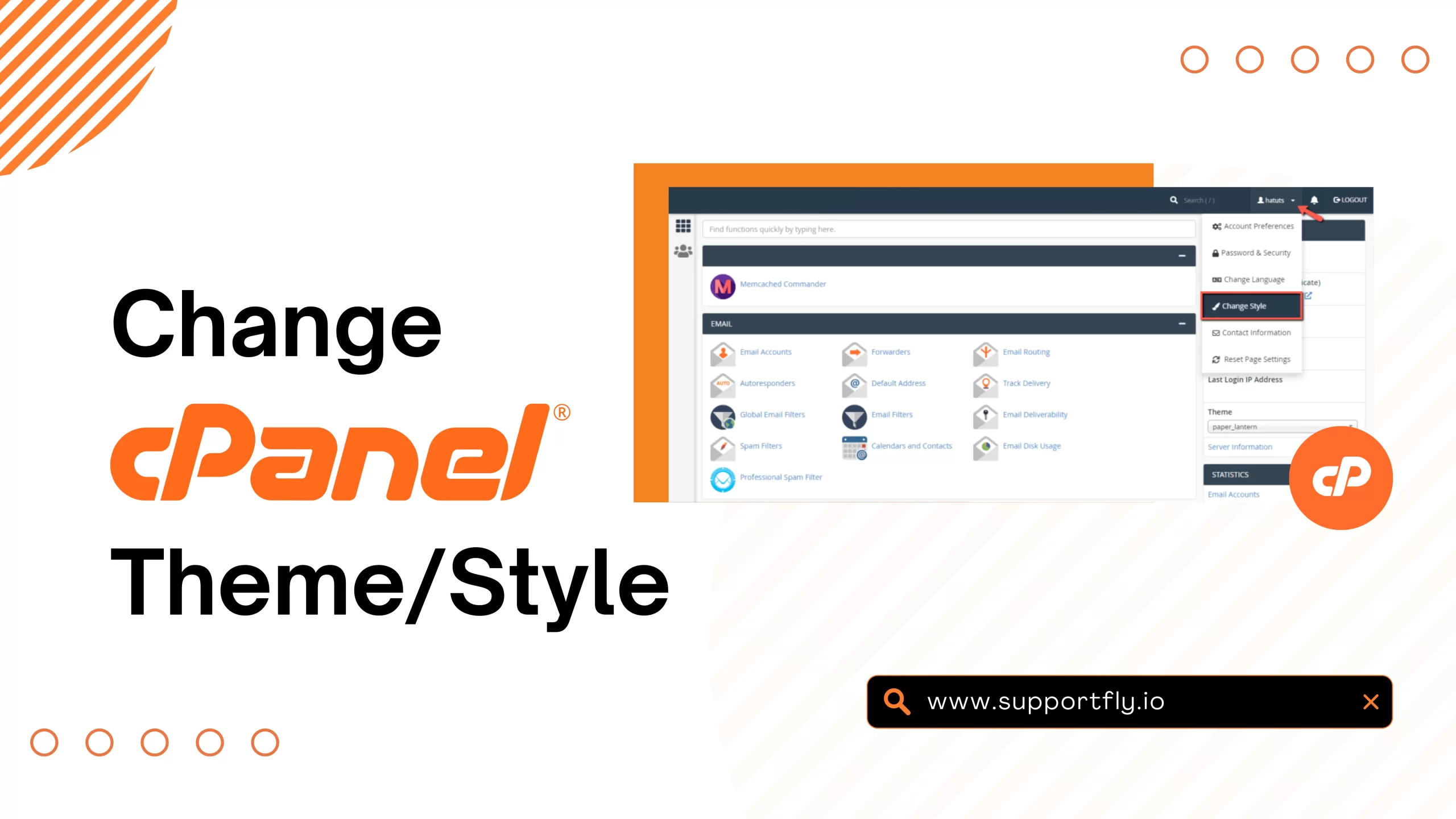
How to Change Your cPanel Theme
cPanel allows us to personalize the appearance of our hosting dashboard by switching to a different theme. Changing the cPanel theme can improve navigation, enhance the user experience, and make the interface more comfortable to use.
The process is quick and does not affect our websites, databases, emails, or hosting settings.
Step 1: Log in to cPanel
Access your hosting account and log in to your cPanel dashboard.
Step 2: Locate the Theme Setting
On the cPanel home page, find the General Information panel.

Within this section, you will see the Theme option along with a drop-down menu displaying the currently active theme.
Step 3: Select a New Theme
Click the Theme drop-down menu and choose your preferred cPanel theme from the available options.
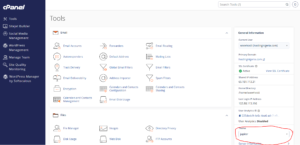
Once selected, the new theme will be applied automatically.
Theme Successfully Changed
After selecting a theme, cPanel will instantly update the interface without requiring you to log out or restart your session.
Why Change Your cPanel Theme?
Switching themes can help us:
- Improve dashboard visibility and navigation.
- Customize the appearance of the control panel.
- Use a layout that better suits our workflow.
- Enhance the overall user experience.
Things to Know Before Changing Themes
- Changing the theme only affects the appearance of cPanel.
- Your website files, databases, email accounts, and settings remain unchanged.
- Available themes may vary depending on your hosting provider.
Tip: If you’re trying cPanel for the first time, explore the available themes to find the layout that’s easiest for you to navigate and manage.