
How to Check Disk Usage and Bandwidth Usage in cPanel
Keeping track of our hosting resources is an important part of website management. If we’ve received a disk space warning from cPanel or simply want to know how much storage and bandwidth our website is using, cPanel provides easy-to-use tools that give us a detailed breakdown of resource consumption.
In this guide, we’ll show you how to check both disk usage and bandwidth usage directly from your cPanel account.
How to Check Disk Usage in cPanel
The Disk Usage tool helps us identify which folders, files, databases, or email accounts are consuming the most storage space within our hosting account.
Step 1: Log in to cPanel
Access your hosting account and log in to your cPanel dashboard.
Step 2: Open the Disk Usage Tool
In the Files section, click on Disk Usage.

Step 3: Review Your Storage Usage
On the Disk Usage page, you’ll see a detailed breakdown of how your account’s storage space is being used.
From the Disk Space Usage section, we can identify:
- Directories using the most disk space
- Website files and folders
- Email storage usage
- Backup files
- Log files
- Database storage, including MySQL databases
This information helps us quickly pinpoint folders or services that may be consuming excessive storage.
Common Causes of High Disk Usage
If your hosting account is running low on storage, the cause is often one of the following:
- Large website backups
- Unused files and folders
- Email accounts with thousands of messages
- Error logs and access logs
- Large image or video uploads
- Growing databases
How to Free Up Disk Space
If you discover that your storage usage is high, we recommend:
- Deleting old backups
- Removing unnecessary files
- Cleaning up unused plugins or themes
- Archiving or deleting old emails
- Optimizing your databases regularly
How to Check Bandwidth Usage in cPanel
Bandwidth refers to the amount of data transferred between your website and its visitors. Monitoring bandwidth usage helps us understand website traffic and ensure we’re operating within our hosting plan limits.
Step 1: Open the Bandwidth Tool
From your cPanel dashboard, navigate to the Metrics section.
Click on Bandwidth.
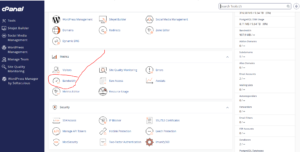
Step 2: View Bandwidth Statistics
The Bandwidth page displays detailed information about data usage across your hosting account.
Here, we can review:
- Total bandwidth consumption
- Daily and monthly usage statistics
- Website traffic data
- FTP transfer usage
- Email-related bandwidth usage
These insights help us understand how visitors interact with our website and identify unusual spikes in traffic.
Why Monitoring Disk Space and Bandwidth Matters
Regularly checking resource usage allows us to:
- Prevent storage-related website issues
- Avoid exceeding hosting limits
- Identify unusual traffic patterns
- Improve website performance
- Plan for future growth
By monitoring these metrics, we can keep our website running efficiently while ensuring there is always enough storage and bandwidth available for visitors.
Tip: If you notice a sudden increase in disk space or bandwidth usage, review recent uploads, backups, website activity, and traffic reports to identify the cause before it affects your website’s performance.