
How to Delete a WordPress Theme
Keeping unused WordPress themes installed on our website can pose security risks and take up unnecessary storage space. Even though inactive themes aren’t being used, outdated themes may contain vulnerabilities that hackers can exploit.
That’s why it’s a good practice to regularly remove themes we no longer need.
In this guide, we’ll show you how to safely delete a WordPress theme.
Why Delete Unused WordPress Themes?
Removing old themes helps us:
- Improve website security.
- Free up storage space.
- Keep our WordPress installation organized.
- Reduce maintenance and update requirements.
- Eliminate unnecessary files from the server.
Note: Before deleting a theme, ensure it is not the active theme. WordPress only allows us to delete inactive themes.
Step 1: Log in to the WordPress Dashboard
Access your WordPress Admin Dashboard using your username and password.
Once logged in, we’ll have access to all theme management options.
Step 2: Open the Themes Page
From the left-hand menu, navigate to:
Appearance → Themes
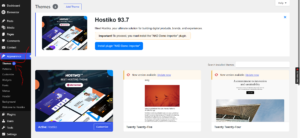
Here, we’ll see all installed themes, including the active one.
Step 3: Open Theme Details
Locate the theme you want to remove.
Hover your mouse over the theme and click Theme Details.
A pop-up window will appear, displaying information about the selected theme.
Step 4: Delete the Theme
In the bottom-right corner of the Theme Details window, click Delete.
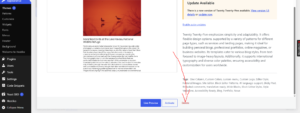
A confirmation prompt will appear.
Click OK to confirm the deletion.
WordPress will permanently remove the theme from your website.
Congratulations! We’ve successfully deleted an unused WordPress theme.
Things to Check Before Deleting a Theme
Before removing a theme, we recommend:
- Ensuring the theme is not currently active.
- Creating a backup of our website.
- Making sure no child themes depend on it.
- Confirming that we no longer plan to use it.
Which Themes Should We Keep?
For security and troubleshooting purposes, it’s a good idea to keep:
- Our active theme.
- One default WordPress theme (such as Twenty Twenty-Five) as a backup.
Keeping one default theme allows us to switch themes quickly if our current theme encounters issues.
Alternative Method: Delete Themes via cPanel
If we can’t access the WordPress dashboard, we can also remove themes through cPanel:
- Log in to cPanel.
- Open File Manager.
- Navigate to:
public_html/wp-content/themes
- Locate the theme folder you want to remove.
- Right-click the folder and select Delete.
Warning: Deleting a theme is permanent. If we want to use the theme again in the future, we’ll need to reinstall it.
Best Practices for Theme Management
To keep our WordPress website secure and efficient, we recommend:
- Removing unused themes regularly.
- Keeping active themes updated.
- Downloading themes only from trusted sources.
- Maintaining regular backups.
- Keeping one default WordPress theme installed for emergencies.
Tip: Inactive themes still require updates. Removing themes we no longer use helps reduce security risks and keeps our website easier to manage.