
How to Edit a Database Table Using phpMyAdmin in cPanel
phpMyAdmin allows you to manage and edit MySQL database data directly from cPanel without accessing your website’s administration panel. This is useful for updating settings, fixing configuration issues, modifying stored values, or making changes when admin access is unavailable.
Follow the steps below to edit a database table using phpMyAdmin in cPanel.
Step 1: Log in to cPanel
Access your hosting account and sign in to your cPanel dashboard.
Step 2: Open phpMyAdmin
In the Databases section, click on phpMyAdmin.
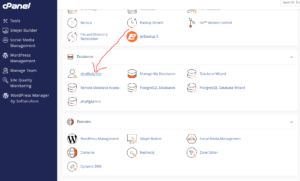
This will open the database management interface.
Step 3: Expand Your Database
From the left sidebar navigation panel, click the Expand icon next to your database name to display all available tables.
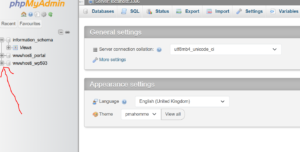
Select the database that contains the data you want to edit.
Step 4: Open the Database Table
Click on the specific table you want to modify.
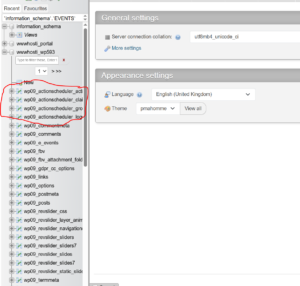
For example:
If you want to update your WordPress site name, open:
wp_options
(WordPress installations may use a different table prefix instead of wp_.)
Step 5: Edit the Database Record
Locate the row that contains the value you want to change.
Click Edit next to that record.
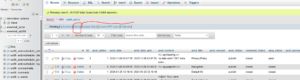
Example edits may include:
- Website title
- Theme settings
- Application configuration values
- User information
- Plugin settings
Step 6: Save Your Changes
Modify the desired value in the corresponding field.
After making your changes, scroll down and click Go to save the update.

Changes Successfully Applied
Once completed, phpMyAdmin will update the database and apply the new values immediately.
Common Use Cases for Editing Database Tables
Using phpMyAdmin, you can:
- Change website titles and settings
- Update application configuration values
- Reset certain CMS options
- Modify plugin or theme settings
- Correct database values when admin access is unavailable
Important Before Editing
Database changes take effect immediately and may affect your website.
Before editing:
- Create a database backup.
- Confirm you are editing the correct table and record.
- Avoid changing unknown values.
- Test changes after saving.
Tip: If you cannot access your website’s admin area, phpMyAdmin can often be used to adjust settings directly in the database and restore access.