How to Edit a File Using cPanel File Manager
The cPanel File Manager allows us to edit website files directly from our browser without using additional software. Whether we need to update HTML, CSS, PHP, JavaScript, or configuration files, the built-in editor makes it easy to make quick changes to our website.
Follow the steps below to edit a file using cPanel File Manager.
Step 1: Log in to cPanel
Access your hosting account and log in to your cPanel dashboard.
Step 2: Open File Manager
In the Files section, click on File Manager.
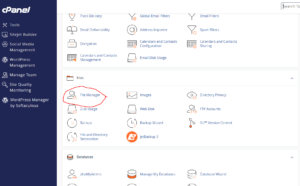
This will open the file management interface where we can view and manage all files stored in our hosting account.
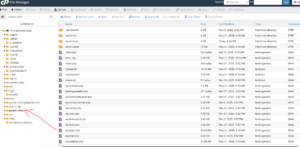
Step 3: Locate the File
Navigate to the directory containing the file you want to edit.
For example, website files are often located inside the public_html directory.
Step 4: Open the File Editor
Right-click on the file you want to modify.
From the context menu, select one of the following options:
- Edit – For editing plain text files, PHP files, configuration files, and scripts.
- HTML Edit – For editing HTML files with additional HTML-focused tools.
Step 5: Launch the Editor
If prompted, click Edit to open the file in the cPanel editor.
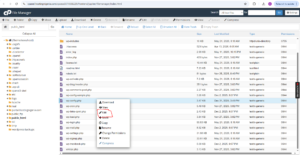
The file contents will load in a new editing window.
Step 6: Make Your Changes
Modify the file as needed.
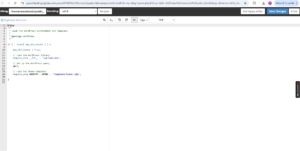
You can update:
- Website content
- HTML code
- CSS styles
- PHP scripts
- Configuration settings
- JavaScript files
Take care when editing code files, as incorrect changes can affect website functionality.
Step 7: Save the File
Once you’ve finished making your changes, click Save Changes at the top of the editor.
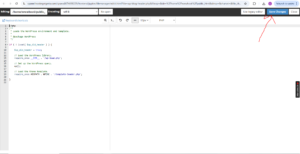
Your updates will be applied immediately.
File Successfully Updated
After saving, the edited file will be updated on your hosting account and the changes should take effect right away.
Why Use cPanel File Manager to Edit Files?
Using File Manager allows us to:
- Make quick website updates without FTP software.
- Edit files directly from any browser.
- Manage website code remotely.
- Troubleshoot website issues faster.
- Update configuration files with ease.
Best Practices Before Editing Files
Before making changes, we recommend:
- Creating a backup of the file.
- Testing changes on a staging site when possible.
- Reviewing code carefully before saving.
- Keeping a copy of the original file for recovery.
Tip: If you’re making major changes to your website, create a backup first so you can quickly restore the original version if something goes wrong.