How to Generate and Download a Full Backup of Your cPanel Account
Creating a full backup of your cPanel account is one of the most reliable ways to protect your website, databases, emails, and configurations. A full backup ensures that everything in your hosting account can be restored if anything goes wrong.
Follow the steps below to generate and download a complete cPanel backup.
Step 1: Log in to cPanel
Access your hosting account and sign in to your cPanel dashboard.
Step 2: Open the Backup Tool
In the Files section, click on Backup.
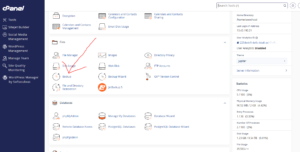
Step 3: Start a Full Backup
Under the Full Backup section, click on Download a Full Website Backup.

Step 4: Configure Backup Destination
From the options provided:
- Select Home Directory as the backup destination.
- Enter your email address in the email field so you receive a notification once the backup process is complete.

This ensures you are informed when your backup is ready for download.
Step 5: Generate the Backup
Click Generate Backup to start the process.
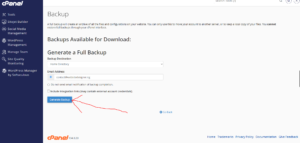
Depending on the size of your hosting account, the backup process may take some time to complete.
Step 6: Download the Backup
Once the backup is finished, you will receive an email notification.
You can then download your full backup by going to:
Backup > Download a Full Account Backup
What a Full Backup Includes
A full cPanel backup contains:
- Website files (Home Directory)
- Databases (MySQL)
- Email accounts and messages
- DNS zones and configurations
- Account settings and preferences
Why Full Backups Are Important
Regular full backups help you:
- Restore your entire website after crashes or errors
- Recover from hacking or malware attacks
- Safely migrate your website to another hosting provider
- Protect business-critical data and emails
Tip: Always store backup copies externally (such as cloud storage or local drives) instead of relying only on your hosting server.