How to Install SolusVM Master on AlmaLinux or CentOS
SolusVM is a popular VPS management platform used by hosting providers to create, manage, and control virtual servers. The SolusVM Master server acts as the central control panel, allowing you to manage slave nodes and provision VPS instances from a single interface.
In this guide, you’ll learn how to install SolusVM Master on AlmaLinux or CentOS and access the administrator panel.
SolusVM Installation Requirements
Before you begin, make sure you have:
- A fresh installation of AlmaLinux 8, CentOS Stream 8, or CentOS 7.
- Root access to your VPS or dedicated server.
- An active internet connection.
- An SSH client such as PuTTY or Terminal.
Important: SolusVM should be installed on a clean server to avoid software conflicts and ensure a successful installation.
Step 1: Connect to Your Server via SSH
Log in to your server using SSH with root privileges.
For AlmaLinux 8 or CentOS Stream 8
Run the following command:
curl -o installer https://files.soluslabs.com/solusvmphp7/install/installer && chmod +x installer && ./installer
For CentOS 7
Run:
curl -o install.sh https://files.solusvm.com/install.sh && sh install.sh
This will begin the SolusVM installation process.
Step 2: Choose the Installation Type
During the installation, you’ll be prompted to select the SolusVM component you want to install.
Since you’re installing the Master server, enter:
1
and press Enter.
This option installs the SolusVM Master, which is responsible for managing slave nodes and VPS instances.
Note: The installation process typically takes between 5 and 10 minutes, depending on your server specifications and internet connection.
Step 3: Wait for the Installation to Complete
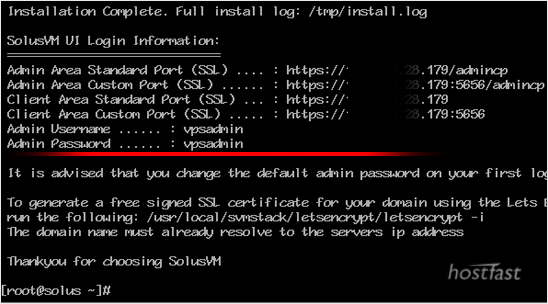
Once the installation finishes, SolusVM will display:
- The administrator login URL.
- Your default username.
- Your default password.
Make sure to save these credentials in a secure location.
Step 4: Access the SolusVM Administrator Panel
Open the administrator URL provided during installation in your browser.
Sign in using the username and password generated by the installer.
Congratulations! You’ve successfully installed SolusVM Master.
You can now begin adding slave nodes and managing VPS deployments from your SolusVM control panel.
Important Security Recommendation
Warning: Change the default username and password immediately after logging in.
The default credentials are not secure and may expose your server to unauthorized access.
Using a strong password and custom administrator username will help protect your SolusVM installation.
Common Installation Issues
Unable to Access the SolusVM Panel
If the administrator URL doesn’t load:
- Verify that the installation completed successfully.
- Check your firewall settings.
- Ensure the required ports are open.
- Restart the server if necessary.
Installation Failed
Installation failures are often caused by:
- Unsupported operating systems.
- Existing software conflicts.
- Insufficient RAM or disk space.
- Network connectivity issues.
Forgot the Administrator Credentials
If you’ve misplaced the login details, you may need to reset the SolusVM administrator password from the server or reinstall the panel if necessary.
What Can You Do with SolusVM Master?
After installation, you can:
- Add and manage slave nodes.
- Create VPS plans and templates.
- Provision KVM, Xen, or OpenVZ virtual machines.
- Monitor VPS resources.
- Suspend or terminate virtual servers.
- Manage IP addresses and bandwidth allocations.
- Create reseller accounts.
- Automate VPS deployments.
Why Use SolusVM?
SolusVM is widely used because it offers:
- Centralized VPS management.
- Support for multiple virtualization technologies.
- Reseller and client management features.
- Automation capabilities.
- A simple web-based interface.
- Scalability for hosting businesses.
Conclusion
Installing SolusVM Master on AlmaLinux or CentOS gives you a powerful platform for managing VPS infrastructure. Once installed, you can control slave nodes, provision virtual machines, and efficiently manage your hosting environment from a centralized dashboard.
Tip: After installation, secure your server, change the default administrator credentials, and configure regular backups to ensure the safety and stability of your VPS infrastructure.