
How to Redirect a Subdomain to an External URL in cPanel
Redirecting a subdomain to an external URL allows visitors to automatically land on a different website or webpage when they access your subdomain. This is useful for directing traffic to another platform, a new website, landing pages, or external services.
Follow the steps below to set up a subdomain redirect in cPanel.
Step 1: Log in to cPanel
Access your hosting account and log in to your cPanel dashboard.
Step 2: Open the Redirects Tool
From the cPanel dashboard, navigate to the Domains section and click on Redirects.
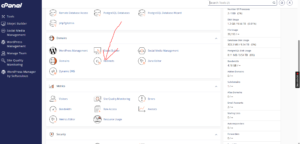
Step 3: Configure the Redirect Settings
Under the Add Redirect section, enter the required details and select the appropriate options:
- Type:
Choose one of the following redirect types:- Permanent (301): Best for long-term redirects and recommended for maintaining SEO value.
- Temporary (302): Suitable for short-term redirects or temporary website changes.
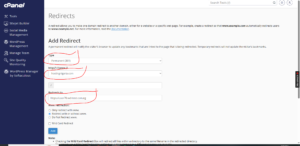
- https?://(www.)?:
Select the subdomain you want to redirect.
You can also choose to redirect a specific page if required. - Redirects to:
Enter the full external URL where visitors should be sent.
Example:
- Redirect from:
blog.example.com - Redirect to:
https://externalwebsite.com
Review the information carefully before applying the redirect.
Step 4: Create the Redirect
Click Add to save and activate the redirect.
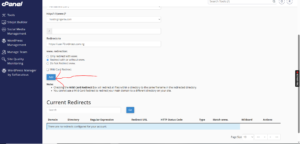
Redirect Successfully Created
After the setup is completed, cPanel will display a confirmation message indicating that the redirect has been created successfully.
Tip: Use a 301 redirect when permanently moving content to preserve search engine rankings and provide a better user experience.