
How to Redirect Your Website to Any Page or External Domain in cPanel
Website redirects are useful when you want to send visitors from one URL to another automatically. Whether you’re moving your website to a new domain, redirecting a specific page, or forwarding traffic to an external website, cPanel makes the process quick and easy.
Follow the steps below to create a website redirect in cPanel.
Step 1: Log in to cPanel
Sign in to your hosting account and access your cPanel dashboard.
Step 2: Open the Redirects Tool
In the Domains section, click on Redirects.
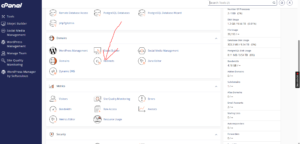
Step 3: Configure the Redirect
Under the Add Redirect section, enter the required information and select the appropriate options.
Redirect Type
Choose the type of redirect you want to use:
- Permanent (301): Ideal for long-term redirects and recommended for SEO purposes.
- Temporary (302): Best for short-term redirects or testing.

Source URL
Under https?://(www.)?, leave the domain as it is if you want to redirect the entire website.
If you want to redirect a specific page or directory, enter the path in the text field provided.
Examples:
- Redirect a page:
/about-us - Redirect a directory:
/blog
Destination URL
In the Redirects to field, enter the full URL where visitors should be redirected.
Examples:
https://newdomain.comhttps://example.com/contacthttps://externalwebsite.com
Step 4: Add the Redirect
Click the Add button to save and activate the redirect.
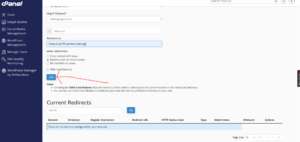
Redirect Successfully Created
Once the redirect has been added, cPanel will display a confirmation message indicating that the redirect is active.
Why Use Website Redirects?
Website redirects can help you:
- Move your website to a new domain without losing visitors.
- Redirect outdated pages to updated content.
- Improve user experience by preventing broken links.
- Maintain SEO rankings when changing URLs.
- Send traffic to external websites, landing pages, or promotional campaigns.
Tip: For permanent website moves, always use a 301 redirect to help search engines transfer ranking signals from the old URL to the new one.