How to Remove a Domain Redirect in cPanel
If you no longer need a redirect for your domain, subdomain, or webpage, you can easily remove it through cPanel. Deleting a redirect will stop visitors from being automatically forwarded to another URL.
Follow the steps below to remove an existing domain redirect in cPanel.
Step 1: Log in to cPanel
Access your hosting account and log in to your cPanel dashboard.
Step 2: Open the Redirects Tool
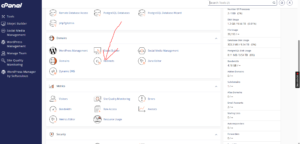
From the cPanel dashboard, navigate to the Domains section and click on Redirects.
Step 3: Locate the Existing Redirect
Scroll down to the bottom of the page until you reach the Current Redirects section.

Here, you will see a list of all active redirects associated with your hosting account.
Find the redirect you want to remove and click the Remove button next to it.
Step 4: Confirm the Removal
A confirmation prompt will appear asking you to verify the action.
Click Remove Redirect once again to confirm and permanently delete the redirect.
Redirect Successfully Removed
After the process is completed, cPanel will display a confirmation message indicating that the redirect has been removed successfully.
When Should You Remove a Redirect?
You may want to remove a redirect if:
- The destination URL is no longer valid.
- You have restored the original webpage or website.
- The redirect was created for a temporary campaign or maintenance period.
- Visitors should now access the original content directly.
Note: Once a redirect is removed, visitors will no longer be forwarded to the destination URL and will instead access the original page or domain, provided it exists.