
How to Remove Sample Posts, Pages, and Comments in WordPress
A fresh WordPress installation comes with default content, including a sample post, page, and comment. While these items are useful for demonstrating how WordPress works, they serve no purpose on a live website and should be removed before we begin publishing our own content.
In this guide, we’ll show you how to delete the default posts, pages, and comments from WordPress.
Why Remove WordPress Sample Content?
Cleaning up the default content helps us:
- Start with a fresh website.
- Avoid displaying unnecessary content to visitors.
- Improve website organization.
- Create a more professional appearance.
- Prevent confusion when managing pages and posts.
Step 1: Log in to the WordPress Dashboard
Access your WordPress Admin Dashboard using your username and password.
Once logged in, you’ll have access to all website management tools.
Step 2: Remove the Sample Post
From the left-hand menu, navigate to:
Posts → All Posts
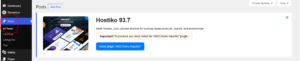
You’ll see the default post, usually titled:
Hello World!
Hover your mouse over the post and click Trash.
The sample post will be moved to the Trash.
Step 3: Remove the Sample Page
Next, navigate to:
Pages → All Pages
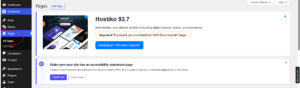
Locate the default page, usually called:
Sample Page
Hover over the page and click Trash.
This removes the default page from your website.
Step 4: Remove Sample Comments
From the WordPress dashboard menu, click:
Comments

Locate the default comment associated with the “Hello World!” post.
Hover over the comment and click Trash.
The comment will be deleted immediately.
Step 5: Permanently Delete the Content (Optional)
Items moved to the Trash are not permanently removed right away.
To completely delete them:
Delete Posts Permanently
Go to:
Posts → Trash
Select the post and click Delete Permanently.
Delete Pages Permanently
Go to:
Pages → Trash
Select the page and click Delete Permanently.
Delete Comments Permanently
Go to:
Comments
Open the Trash section and permanently remove the comment if desired.
Your WordPress Website Is Now Clean
After removing the default post, page, and comment, we’ll have a clean WordPress installation ready for creating our own content.
Best Practices for New WordPress Websites
After installing WordPress, we recommend:
- Removing all sample content.
- Setting your website title and tagline.
- Installing essential plugins.
- Choosing a theme that matches your brand.
- Configuring permalinks.
- Creating important pages such as About, Contact, and Privacy Policy.
- Enabling automatic backups.
Tip: Cleaning up the default WordPress content is one of the first things we recommend after a fresh installation. Starting with a clean website makes content management much easier and gives visitors a more professional experience.