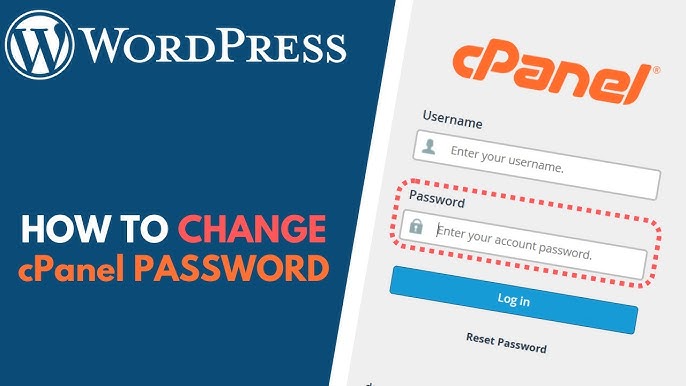
How to Reset Your cPanel Account Password
Changing your cPanel password regularly is an important security practice that helps protect your hosting account, website files, databases, and email accounts from unauthorized access.
If you can already access your cPanel account, follow the steps below to reset your password.
Step 1: Log in to cPanel
Access your hosting account and sign in to your cPanel dashboard using your current login credentials.
Step 2: Open Password & Security
In the Preferences section, click on Password & Security.
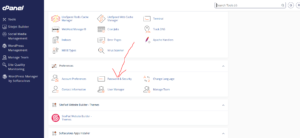
Step 3: Enter Your Current Password
In the Old Password field, enter your existing cPanel password.
This step verifies your identity before allowing password changes.
Step 4: Create a New Password
Enter your new password in the New Password field.
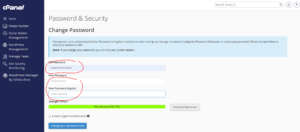
Alternatively, use the built-in Password Generator to create a strong and secure password automatically.
For maximum security, your password should include:
- Uppercase and lowercase letters
- Numbers
- Special characters
- At least 12 characters
Step 5: Save the Changes
Click Change Your Password Now to update your account password.
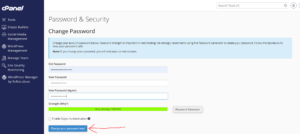
Password Successfully Changed
If the password reset is successful, cPanel will display a confirmation message.
You can now log in to your cPanel account using your new password.
Best Practices for cPanel Password Security
To keep your hosting account secure:
- Use a unique password that is not used elsewhere.
- Avoid common words or predictable combinations.
- Change your password periodically.
- Store passwords in a secure password manager.
- Never share your cPanel credentials with unauthorized users.
Forgot Your cPanel Password?
If you have forgotten your cPanel password and cannot log in to your account, please raise a ticket with us or contact us on our socials.
We can verify account ownership and help you regain access securely.
Tip: After changing your cPanel password, update any saved login credentials in your browser or password manager to avoid login issues.