
How to Restore Partial Backups in cPanel
Restoring a partial backup in cPanel allows you to recover specific parts of your hosting account, such as your home directory, databases, or email data. This is useful when you need to restore only selected data instead of performing a full account recovery.
⚠️ Important: Restoring a backup will overwrite existing data in the selected area. Always confirm that you are restoring the correct file before proceeding.
Follow the steps below to restore a partial backup in cPanel.
Step 1: Log in to cPanel
Access your hosting account and log in to your cPanel dashboard.
Step 2: Open Backup Wizard
In the Files section, click on Backup Wizard.
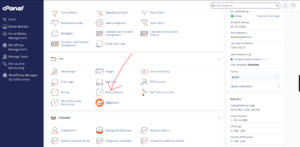
Step 3: Start the Restore Process
Under the Backup/Restore section, click on Restore.

Step 4: Select Restore Type
Choose the type of data you want to restore. Common options include:
- Home Directory
- MySQL Databases
- Email Forwarders & Filters

Select the appropriate restore type depending on the backup you want to upload.
Step 5: Upload Backup File
Click Browse and select the backup file from your computer.
Once selected, click Upload to start the restoration process.

Step 6: Wait for Completion
cPanel will begin restoring your data. The process may take a few minutes depending on the size of the backup.
Once completed, you will receive a confirmation message indicating that the restore was successful.
When to Use Partial Restore
Partial restore is useful when:
- You accidentally deleted files or folders.
- A database was corrupted and needs recovery.
- Email accounts or settings were lost.
- You want to restore only a specific part of your website.
Tip: Always double-check the restore type before uploading a backup file to avoid overwriting important data unintentionally.