
How to Upload Files Using cPanel File Manager
cPanel’s built-in File Manager makes it easy for us to upload, manage, and organize website files directly from our browser. This means we can quickly update our website without needing a separate FTP application.
Whether we’re uploading HTML files, images, documents, scripts, or website backups, the File Manager provides a simple and convenient way to manage our hosting account files.
Step 1: Log in to cPanel
Access your hosting account and log in to your cPanel dashboard.
Step 2: Open File Manager
In the Files section, click on File Manager.
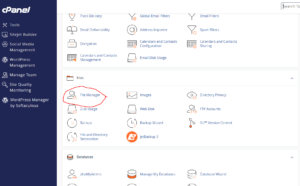
This will open the cPanel File Manager interface, where we can view and manage all files and folders within our hosting account.
Step 3: Navigate to the Upload Location
Browse to the folder where you want to upload your files.
For most websites, the primary location is the public_html directory, which serves as the document root for your main website.
To access it:
- Locate public_html in the left-hand directory panel.
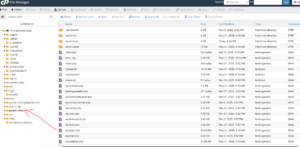
- Click on it to open the folder.
Step 4: Start the Upload Process
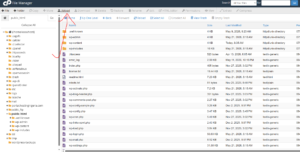
Once you’ve opened the correct folder, click the Upload button located at the top of the File Manager interface.
Step 5: Select Your File
On the upload page, click Select File and choose the file you want to upload from your computer.

Alternatively, you can simply drag and drop files directly into the upload area.
The upload will begin automatically once the file is selected.
Step 6: Verify the Upload
After the upload reaches 100%, return to File Manager and confirm that the file appears in the selected directory.
Your file is now available on your hosting account.
What Can We Upload?
Using File Manager, we can upload:
- HTML and PHP files
- CSS and JavaScript files
- Images and media files
- Website backups
- PDF documents
- ZIP archives
- Application installation files
Benefits of Using cPanel File Manager
File Manager allows us to:
- Upload files without FTP software.
- Manage files directly from any browser.
- Create, edit, move, and delete files.
- Extract ZIP archives online.
- Quickly update website content.
Tip: If you’re uploading multiple files, consider compressing them into a ZIP archive first. Uploading a single ZIP file and extracting it inside File Manager is often faster than uploading many individual files.