
How to Generate a Certificate Signing Request (CSR) in cPanel
Before we can purchase or install an SSL certificate from a trusted Certificate Authority (CA), we need to generate a Certificate Signing Request (CSR). A CSR contains information about our domain and organization and is used to create SSL certificates, whether they’re purchased from a commercial provider or generated as self-signed certificates.
In this guide, we’ll show you how to generate a CSR directly from cPanel.
What Is a CSR?
A Certificate Signing Request (CSR) is a block of encoded text that contains information about:
- Our domain name
- Company or organization details
- Location information
- Contact email address
Certificate Authorities use this information to issue SSL certificates that secure our website and encrypt visitor data.
Why Do We Need a CSR?
We need a CSR when:
- Purchasing a new SSL certificate.
- Reissuing an existing SSL certificate.
- Generating a self-signed certificate.
- Securing a website with HTTPS.
- Renewing certain SSL certificates.
Step 1: Log in to cPanel
Access your hosting account and log in to your cPanel dashboard.
Step 2: Open SSL/TLS
In the Security section, click on SSL/TLS.

This tool allows us to manage SSL certificates, private keys, and certificate signing requests.
Step 3: Open the CSR Generator
Under Certificate Signing Requests (CSR), click Generate, View, or Delete CSR.

Step 4: Enter Your Certificate Information
Fill in the required fields.
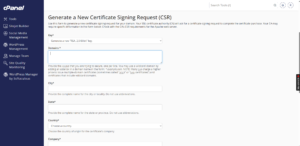
Domains
Enter your domain name.
Example:
www.example.com
Using the www version typically covers both:
- example.com
- www.example.com
City
Enter the city where your organization or business is located.
State
Enter your state or province.
Country
Select your country from the dropdown menu.
Company
Enter your company or organization name.
Company Division
Specify the department or division name, such as:
- IT Department
- Web Services
- Support Team
Email Address
Enter a valid email address for certificate-related communication.
Passphrase
Enter a passphrase with a maximum of 20 characters.
Avoid using special characters, and keep the passphrase secure for future reference.

Step 5: Generate the CSR
After entering all the required information, click Generate.
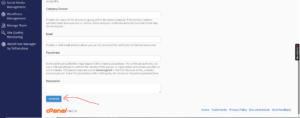
cPanel will create your CSR and display the generated code.
Save Your CSR
Copy the generated CSR code and save it in a secure location.
You’ll need this code when:
- Purchasing an SSL certificate.
- Reissuing an SSL certificate.
- Installing a certificate with a Certificate Authority.
Example of a CSR
A Certificate Signing Request usually looks similar to this:
-----BEGIN CERTIFICATE REQUEST-----
MIIC...
-----END CERTIFICATE REQUEST-----
Best Practices for CSR Generation
To avoid issues during SSL installation, we recommend:
- Using accurate company and contact information.
- Saving the generated CSR in a secure location.
- Backing up your private key.
- Using a valid email address.
- Double-checking your domain name before generating the request.
Why SSL Certificates Matter
Installing an SSL certificate helps us:
- Encrypt data between visitors and our website.
- Enable HTTPS.
- Improve website security.
- Increase visitor trust.
- Enhance SEO rankings in search engines.
Tip: Keep a copy of both your CSR and private key after generating them. They may be required if you need to reinstall or reissue your SSL certificate in the future.