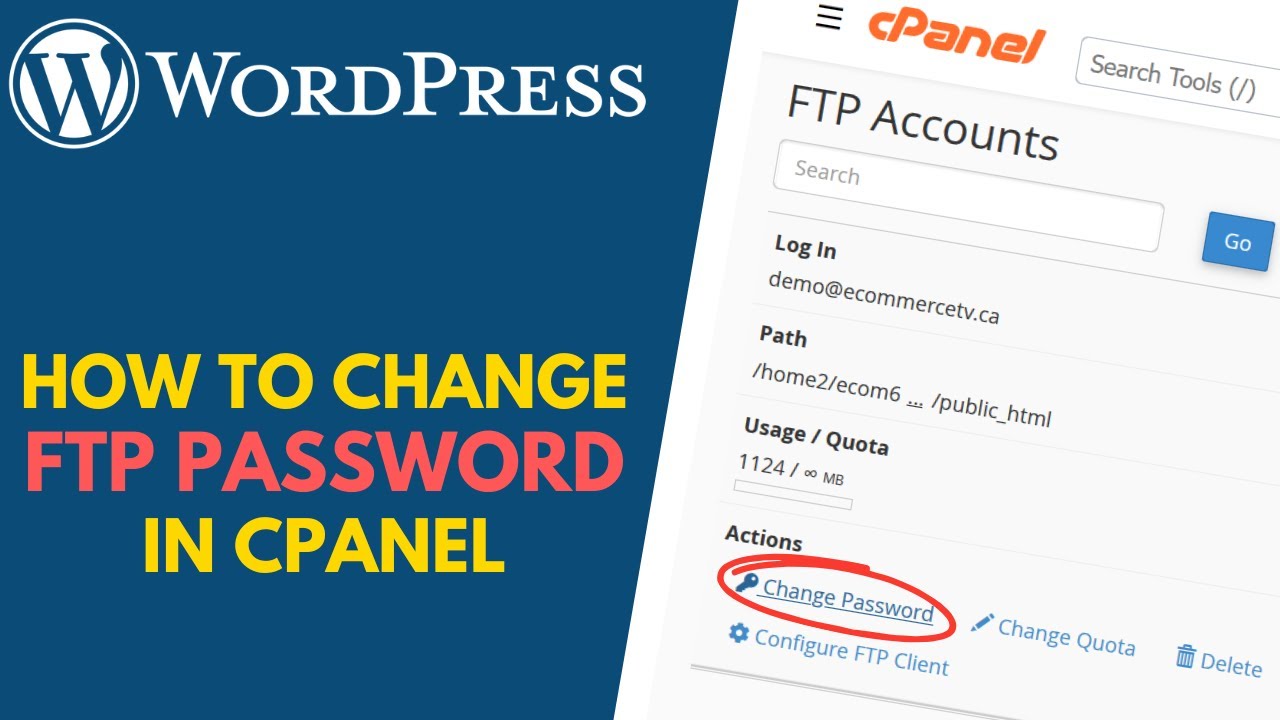
How to Change the Password of an FTP Account in cPanel
Changing your FTP password regularly is an important security practice that helps protect your website files from unauthorized access. While the main FTP account uses your cPanel login credentials, additional FTP accounts have separate passwords that can be changed independently.
In this guide, you’ll learn how to update the password for an FTP account in cPanel.
Why Change Your FTP Password?
Updating your FTP password can help you:
- Improve website security.
- Replace weak or outdated passwords.
- Prevent unauthorized access to your files.
- Revoke access previously shared with others.
- Protect sensitive website data.
Note: To change the password for the main FTP account, you’ll need to change your cPanel account password. The steps below apply to additional FTP accounts only.
Step 1: Log in to Your cPanel Account
Access your cPanel account using your username and password.
Step 2: Open FTP Accounts
From the Files section, click on FTP Accounts.
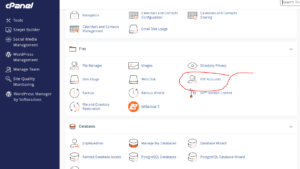
You’ll see a list of all FTP accounts associated with your hosting account.
Step 3: Change the FTP Password
Locate the FTP account whose password you want to update.
Under the list of FTP accounts, click Change Password.
Enter your new password manually, or click Password Generator to create a strong password automatically.
Tip: Use a combination of uppercase letters, lowercase letters, numbers, and symbols to create a secure password.
Step 4: Save the Changes
Click Change Password to apply the new password.
Congratulations! You’ve successfully updated your FTP account password.
You can now use the new credentials to access your website files through your preferred FTP client.
Updating Your FTP Client
After changing the password, don’t forget to update the saved credentials in your FTP software, such as:
- FileZilla
- WinSCP
- Cyberduck
- Transmit
If you don’t update the stored password, you’ll receive authentication errors when trying to connect.
Common FTP Login Problems
Incorrect Password Error
If you’re unable to log in:
- Verify that you’ve entered the new password correctly.
- Ensure there are no extra spaces.
- Update any saved passwords in your FTP client.
- Try copying and pasting the password to avoid typing mistakes.
Unable to Connect to the Server
Check the following:
- The FTP hostname is correct.
- You’re using the correct username.
- Port 21 is open and not blocked by a firewall.
- The FTP account is active.
Best Practices for FTP Password Security
To keep your website secure, it’s recommended to:
- Use strong, unique passwords.
- Change FTP passwords periodically.
- Avoid sharing credentials publicly.
- Delete unused FTP accounts.
- Use SFTP or FTPS whenever supported.
- Store passwords in a secure password manager.
Conclusion
Regularly updating your FTP account password is a simple but effective way to improve your website’s security. By using strong passwords and keeping your credentials private, you can help protect your files and maintain secure access to your hosting account.
Tip: If multiple people need access to your website, create separate FTP accounts instead of sharing the same login credentials. This gives you better control over access and makes password management easier.