
How to Change the FTP User Quota in cPanel
Managing FTP quotas allows you to control how much disk space each FTP account can use. This is especially useful if you’ve created separate FTP accounts for developers, team members, or clients and want to limit their storage usage.
In this guide, you’ll learn how to change the quota of an FTP account or set it to unlimited in cPanel.
What Is an FTP Quota?
An FTP quota determines how much storage space an FTP user can use on your hosting account.
By assigning quotas, you can:
- Prevent a single user from consuming too much disk space.
- Manage multiple FTP accounts efficiently.
- Restrict access for clients or team members.
- Improve overall storage management.
- Set unlimited access for trusted users.
Step 1: Log in to Your cPanel Account
Access your cPanel account using your username and password.
Step 2: Open FTP Accounts
From the Files section, click on FTP Accounts.
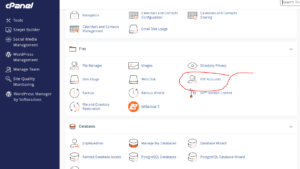
This page displays all FTP users associated with your hosting account.
Step 3: Change the FTP Quota
Locate the FTP account you want to modify.
Under the list of FTP accounts, click Change Quota.
You’ll be presented with two options:
Set a Storage Limit
Enter a specific amount of disk space the FTP user is allowed to use.
For example:
500 MB
or
1024 MB
This helps prevent users from exceeding their allocated storage.
Set Unlimited Storage
If you don’t want to impose any restrictions, select Unlimited.
This allows the FTP account to use as much disk space as is available on your hosting account.
Step 4: Save the Changes
Click Change Quota to apply the new settings.
Congratulations! You’ve successfully updated the FTP user quota.
Why Use FTP Quotas?
Setting FTP quotas is useful when:
- Hosting multiple websites.
- Working with developers or clients.
- Sharing file access with team members.
- Managing storage consumption.
- Preventing accidental overuse of disk space.
Best Practices for FTP Account Management
To keep your hosting account secure and organized, it’s recommended to:
- Assign separate FTP accounts to different users.
- Limit access to specific directories.
- Set appropriate quotas when needed.
- Remove unused FTP accounts.
- Use strong passwords for all FTP users.
- Monitor disk usage regularly.
Common Issues with FTP Quotas
Upload Failed Due to Insufficient Space
If an FTP user receives an error while uploading files, the account may have reached its quota limit.
To resolve this:
- Increase the quota.
- Delete unnecessary files.
- Set the quota to Unlimited if appropriate.
FTP User Cannot Upload Files
This may happen if:
- The quota has been exhausted.
- File permissions are incorrect.
- The hosting account itself has run out of disk space.
Conclusion
Managing FTP quotas in cPanel gives you better control over storage usage and helps keep your hosting account organized. Whether you want to restrict disk space or provide unlimited access, changing FTP quotas only takes a few clicks.
Tip: If you manage multiple FTP users, assigning reasonable quotas can help prevent unexpected disk space issues and ensure fair resource allocation across your hosting account.