
How to Add a CNAME Record in cPanel
A CNAME record (Canonical Name record) is a type of DNS record that creates an alias for a domain or subdomain. Instead of pointing directly to an IP address like an A record, a CNAME record points one domain name to another domain name.
Using cPanel’s Zone Editor, we can easily add CNAME records to connect subdomains, configure third-party services, or simplify DNS management.
What Is a CNAME Record?
A CNAME record maps one hostname to another hostname.
For example:
www.example.com → example.com
blog.example.com → sites.example.net
Whenever someone visits the alias domain, DNS automatically redirects the request to the canonical domain.
CNAME records are commonly used for:
- Pointing the www version of a domain to the root domain.
- Connecting subdomains to external services.
- Configuring CDN providers.
- Verifying domains with third-party applications.
- Simplifying DNS management.
Step 1: Log in to cPanel
Access your hosting account and log in to your cPanel dashboard.
Step 2: Open the Zone Editor
In the Domains section, click on Zone Editor.

This tool allows us to manage all DNS records associated with our domains.
Step 3: Locate the Domain
Under the Domains section, find the domain you want to configure.
Under the Actions column, click CNAME Record.

A popup window will appear.
Step 4: Enter the CNAME Record Details
Fill in the required fields.
Name
Enter the subdomain or hostname you want to create.
For example, if you enter:
www
cPanel will automatically create:
www.example.com
CNAME
Enter the destination domain name that the alias should point to.
For example:
example.com
or
ghs.googlehosted.com
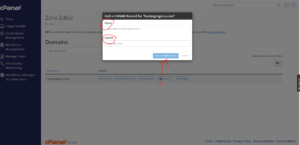
Be sure to use the exact hostname provided by your hosting provider or third-party service.
Step 5: Add the CNAME Record
Click Add a CNAME Record.
If the record is created successfully, cPanel will display a confirmation message.
DNS Propagation Time
Although the record is added immediately, DNS changes may take some time to propagate across the internet.
In most cases, updates become active within 12 to 24 hours, although some networks may reflect the changes much sooner.
Common Uses for CNAME Records
We commonly use CNAME records to:
- Point www.example.com to example.com
- Connect subdomains to external hosting platforms
- Configure content delivery networks (CDNs)
- Set up email marketing services
- Verify domain ownership with third-party providers
Best Practices for Managing CNAME Records
To avoid DNS conflicts, we recommend:
- Using CNAME records only for subdomains.
- Double-checking the destination hostname before saving.
- Avoiding multiple records for the same hostname.
- Allowing time for DNS propagation after making changes.
Tip: A CNAME record points to another domain name, not an IP address. If you need to point a domain directly to a server’s IP address, use an A record instead.