
How to Create a Cron Job in cPanel
A cron job allows us to automate repetitive tasks on our hosting account. Instead of running scripts manually, we can schedule commands or PHP scripts to execute automatically at specific times and intervals.
Cron jobs are commonly used for:
- Running scheduled backups
- Sending automated emails
- Processing queued tasks
- Executing WordPress maintenance scripts
- Synchronizing data between applications
- Running custom PHP scripts
Follow the steps below to create a cron job in cPanel.
Step 1: Log in to cPanel
Access your hosting account and log in to your cPanel dashboard.
Step 2: Open the Cron Jobs Tool
In the Advanced section, click on Cron Jobs.

This will open the cron management interface where we can create, edit, and manage scheduled tasks.
Step 3: Configure the Cron Schedule
Under Add New Cron Job, locate the Common Settings dropdown menu.

Select a predefined schedule that matches how often you want the task to run.
Common options include:
- Once Per Minute
- Once Per Five Minutes
- Once Per Hour
- Twice Per Day
- Once Per Day
- Once Per Week
- Once Per Month
If you need a custom schedule, you can manually configure the cron timing fields.
Step 4: Enter the Command
In the Command field, enter the command or script path you want the server to execute.
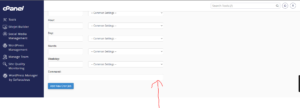
Example PHP Cron Job
php -q /home/username/public_html/cron.php
Example cURL Cron Job
curl -s https://yourdomain.com/cron.php
Example Wget Cron Job
wget -q -O /dev/null https://yourdomain.com/cron.php
Make sure the command path is correct before saving.
Step 5: Create the Cron Job
Click Add New Cron Job.
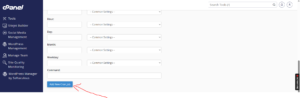
cPanel will save the schedule and begin running the task automatically according to the selected interval.
Cron Job Successfully Created
Once added, your cron job will appear in the Current Cron Jobs section, where we can review, edit, or remove it at any time.
Common Cron Job Uses
Many website owners use cron jobs for:
- Automating website backups
- Sending newsletters
- Running scheduled database maintenance
- Updating application data
- Processing eCommerce orders
- Executing custom scripts
Best Practices for Cron Jobs
To avoid server performance issues, we recommend:
- Scheduling tasks only as often as necessary.
- Testing commands manually before creating the cron job.
- Avoiding multiple heavy tasks running simultaneously.
- Monitoring cron job output for errors.
Tip: If you’re unsure about the correct command for your application, consult the software documentation or contact our support team before creating the cron job.