How to Create an FTP Account in cPanel
FTP (File Transfer Protocol) allows you to upload, download, and manage your website files using an FTP client such as FileZilla. While your cPanel credentials provide full access to your hosting account, creating separate FTP accounts lets you grant access to specific directories without exposing your entire website.
In this guide, you’ll learn how to create an FTP account in cPanel and connect to it using an FTP client.
Why Create a Separate FTP Account?
Creating additional FTP accounts allows you to:
- Grant access to specific folders only.
- Improve website security.
- Share access with developers or team members.
- Manage multiple websites more efficiently.
- Restrict users from accessing sensitive files.
Step 1: Log in to Your cPanel Account
Access your cPanel account using your username and password.
Step 2: Open FTP Accounts
From the Files section, click on FTP Accounts.
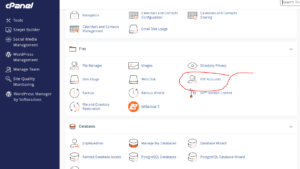
This page allows you to create and manage FTP users.
Step 3: Add a New FTP Account
Under Add FTP Account, enter the following details:
Log In
Enter a username for the new FTP account.
For example:
new-user
Avoid using spaces in the username.
Password
Enter a secure password or click Password Generator to create a strong password automatically.
Directory
Specify the folder that the FTP account should have access to.
Examples:
- To grant access to the entire website:
public_html
- To restrict access to a specific folder:
public_html/new-user
The FTP user will only be able to access files inside the specified directory.
Quota
Choose how much disk space the FTP account can use.
You can:
- Enter a specific storage limit.
- Select Unlimited to remove restrictions.
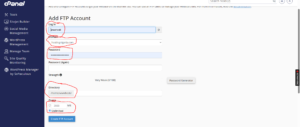
Step 4: Create the FTP Account
After entering the required information, click Create FTP Account.
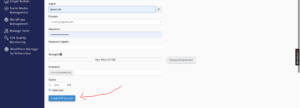
Congratulations! You’ve successfully created a new FTP account.
How to Connect to Your FTP Account
You can use an FTP client such as FileZilla to access your website files.
Enter the following details:
Host
Use your website’s domain name or FTP hostname.
Example:
ftp.example.com
Replace example.com with your actual domain name.
Username
Use the FTP username you created.
Example:
new-user@example.com
Password
Enter the password assigned to the FTP account.
Port
The default FTP port is:
21
After entering these details, connect to the server to start managing your files.
Popular FTP Clients
Some commonly used FTP applications include:
- FileZilla
- WinSCP
- Cyberduck
- Transmit
These tools make it easy to transfer files between your computer and your hosting account.
Best Practices for FTP Security
To keep your website secure, it’s recommended to:
- Use strong passwords for all FTP accounts.
- Grant access only to the directories users need.
- Delete unused FTP accounts.
- Use SFTP or FTPS whenever available.
- Avoid sharing FTP credentials publicly.
- Change passwords periodically.
Common FTP Connection Issues
Unable to Connect
If your FTP client cannot connect:
- Verify the hostname and port number.
- Check that your username and password are correct.
- Ensure port 21 is not blocked by your firewall.
- Confirm that the FTP account is active.
Access Denied
This usually means:
- Incorrect login credentials.
- The FTP account doesn’t have permission to access the folder.
- The directory path was entered incorrectly when the account was created.
Conclusion
Creating additional FTP accounts in cPanel gives you more control over file access and improves the security of your hosting account. By assigning users to specific directories, you can safely collaborate with developers and manage your website more efficiently.
Tip: Instead of sharing your main cPanel credentials, create separate FTP accounts with limited access. This helps protect your website and keeps sensitive files secure.