
How to Delete a Database Table Using phpMyAdmin in cPanel
phpMyAdmin allows you to manage your MySQL databases directly from cPanel, including deleting database tables when they are no longer needed. Deleting a table permanently removes all records and structure contained within that table.
⚠️ Warning: Deleting a database table cannot usually be undone unless you have an existing backup. Always create a backup before proceeding.
Follow the steps below to delete a database table using phpMyAdmin in cPanel.
Step 1: Log in to cPanel
Access your hosting account and sign in to your cPanel dashboard.
Step 2: Open phpMyAdmin
In the Databases section, click on phpMyAdmin.
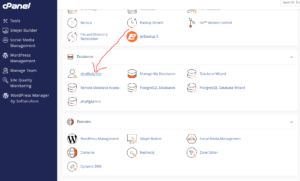
This will open the database management interface.
Step 3: Expand the Database
From the navigation panel on the left sidebar, click the Expand icon next to your database name to display all available tables.
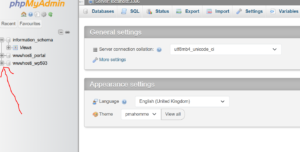
Locate and select the table you want to remove.
Example:
If you want to delete the WordPress links table, select:
wp_links
(Your table prefix may differ depending on your installation.)
Step 4: Open the Operations Tab
After selecting the table, click on the Operations tab located at the top of the phpMyAdmin interface.

Step 5: Delete the Table
Scroll down until you find the Delete the Table (DROP) option.
Click Delete the Table (DROP).

Step 6: Confirm Deletion
A confirmation prompt may appear.
Carefully review the selected table name and confirm the action.
phpMyAdmin will permanently remove the table and all associated data.
Table Successfully Deleted
Once completed, the table will disappear from your database structure and can no longer be accessed.
Before Deleting a Table
Consider these precautions:
- Export or back up the database first.
- Confirm the table is not actively used by your website.
- Verify the table name before deletion.
- Test website functionality afterward.
Common Reasons to Delete a Database Table
You may want to remove a table if:
- Old plugin or application data is no longer needed.
- A test environment created unnecessary tables.
- You are cleaning up unused database records.
- You are troubleshooting corrupted data.
Tip: If you are unsure whether a table is required, export a backup first instead of deleting immediately.